
Going live on one platform is good. Going live on five at the same time is better.
That's what Restream does. You start one stream, and Restream sends it to YouTube, Facebook, LinkedIn, Twitch, X and more, all at once. More places means more viewers, without more work.
This tutorial shows you exactly how to go live with Restream, step by step, even if you've never streamed before. We'll also show you where Livecaster fits in, for the times you want to stream a pre-recorded video, run a stream on a schedule or keep a channel live around the clock.
What Is Restream?
Restream is a multistreaming service. Its homepage sums it up well. One live video, 30+ destinations.
Instead of streaming to each platform one by one, you send a single stream to Restream. It then copies that stream to every channel you've connected. You also get one chat window that pulls in comments from all of them, so you can talk to everyone in one place.
Restream has two main ways to go live.
- Restream Studio. A browser-based studio. Use your webcam, share your screen, add guests and go live without installing anything.
- Encoder (RTMP). Send a stream from software such as OBS or Livecaster into Restream, which then shares it everywhere.
We'll cover both below.
What You Need Before You Start
- A Restream account. The free plan lets you stream to two channels at once.
- Your social accounts. The YouTube, Facebook, LinkedIn or other accounts you want to stream to.
- A stable internet connection. A wired connection is safest. Aim for an upload speed well above what your stream needs.
- A camera and microphone, if you plan to stream live from Restream Studio.
- A video file, if you plan to stream a pre-recorded video through an encoder like Livecaster.
Some platforms have their own rules for going live, like minimum subscriber counts or account checks. Sort those out first so nothing blocks you on the day.
Step 1. Create Your Restream Account
Go to Restream and sign up with your email or Google account. You'll land on your dashboard, which is the home base for all your streams.
Start with the free plan while you learn. You can upgrade later if you need more channels or want to remove Restream's branding.
Step 2. Connect Your Channels
On the dashboard, choose to add a channel. Pick a platform, sign in and give Restream permission to stream for you.
Repeat this for each platform you want. On the free plan you can connect more channels but only stream to two at the same time, so toggle on the two that matter most for each stream.
Step 3. Set Your Title and Description
Before you go live, update the title and description. Restream lets you set one for all channels or tweak each one separately.
Write a clear, specific title. "Live Q and A, How to Plan Your First Product Launch" will pull in more viewers than "Live stream." Add a short description with any links you want viewers to see.
Step 4. Go Live From Restream Studio
If you're streaming yourself, Restream Studio is the easiest way.
- Open Studio. From the dashboard, choose to stream with Studio.
- Pick your camera and mic. Allow your browser to use them and check the preview.
- Add your layout. Choose how you appear on screen, and add a logo, banner or overlay if you like.
- Invite guests (optional). Send a link so co-hosts can join from their own browsers.
- Click Go Live. Restream starts sending your stream to every active channel.
Keep an eye on the combined chat panel. Reply to comments by name. It makes viewers on every platform feel seen.
Step 5. Go Live With an Encoder Instead
Studio is great for live, on-camera streams. But sometimes you want more control, or you want to stream a video you've already recorded. That's where an encoder comes in.
In Restream, choose to stream with an encoder (RTMP). Restream shows you an RTMP server address and a stream key. Copy both into your encoder, start the stream there, and Restream picks it up and sends it to all your channels.
Keep your stream key private. Anyone who has it can stream to your channels. If you think it has leaked, reset it in Restream.
New to RTMP and stream keys? Our guide on what live streaming software is and how encoders, RTMP and stream keys work explains it in plain language.
Stream Pre-Recorded Videos Through Restream With Livecaster
Not every stream needs you sitting in front of a camera. A webinar replay, a tutorial, a music mix or a product demo can all run as a live stream from a video file. Livecaster is built for exactly that.
Livecaster takes a video, or a whole sequence of videos, and streams it live through RTMP. It works with Restream, and it also streams directly to YouTube, Facebook, TikTok, Instagram, Twitch, Amazon and other platforms that accept RTMP.
- In Restream, start a new stream and choose the encoder (RTMP) option. Copy the RTMP address and stream key.
- In Livecaster, add a new channel, name it Restream, and paste in the address and key.
- Choose your video. Pick a single video or a sequence of videos to livecast.
- Go live or schedule it. Start right away or set a time for the stream to begin.
- Check Restream. Your video shows up as the live feed and goes out to every connected channel.
Because Livecaster runs the stream for you, you can be live while you're asleep, travelling or working on something else. You can even run a channel live 24/7 with music, tutorials or news.
Restream or Livecaster? Which Do You Need?
They solve different problems, and many creators use both.
| Restream | Livecaster | |
|---|---|---|
| Main job | Send one stream to many platforms | Stream pre-recorded videos as live |
| Best for | Live, on-camera shows with guests | Replays, demos, playlists, 24/7 channels |
| Scheduling | Schedule events in advance | Schedule livecasts to run on their own |
| Runs without you | No, someone hosts the live show | Yes, it streams the video for you |
| Starting price | Free for 2 channels, paid from $19 a month billed yearly | $5.58 a month paid yearly |
Use Restream when you want to be live in person and reach many platforms. Use Livecaster when you want to turn videos you already have into live streams that run on autopilot. Use them together when you want both, like a pre-recorded stream that also goes out to many platforms through Restream.
Livecaster can also send a stream to several platforms at once by itself, so for pre-recorded streams you may not need a separate multistreaming plan at all.
How Much Does It Cost?
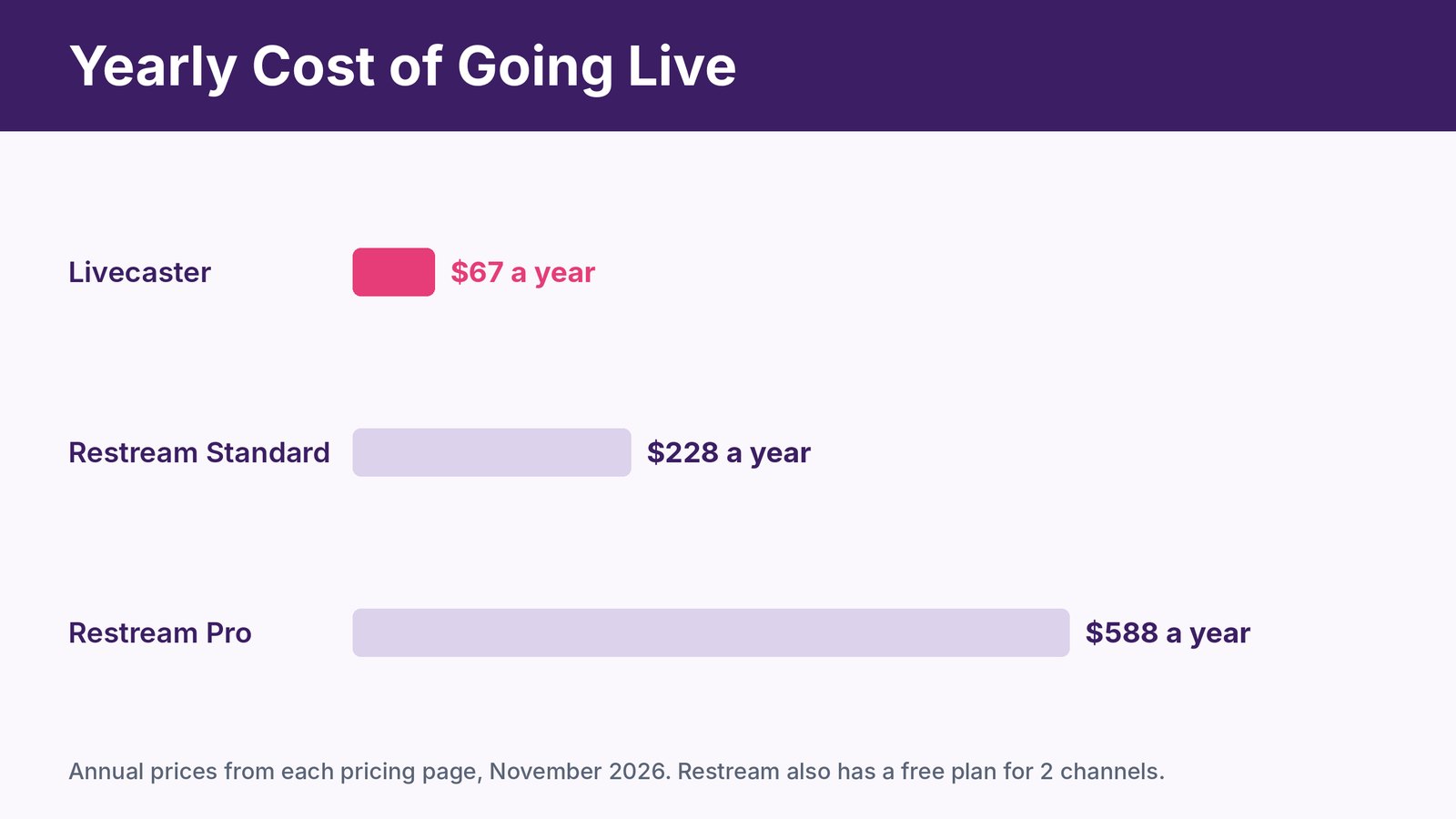
According to Restream's pricing page, the free plan lets you stream to two channels with Restream branding. Paid plans start at $19 a month billed yearly for Standard and $49 a month for Professional, with add-ons for clips and webinars.
Livecaster costs $5.58 a month, paid yearly ($67 a year), or $6.99 month to month, with a 30 day refund.
Watch a Restream Walkthrough
If you prefer to watch, this beginner tutorial from Manizha and Ryan walks through Restream's main features.
Tips for a Great First Multistream
- Do a private test. Stream to an unlisted or private destination first to check sound and picture.
- Start small. Two or three platforms are easier to manage than ten.
- Promote it early. Tell people when you'll be live, on every platform you'll stream to.
- Talk to the chat. Greet viewers by name and mention which platform they're watching on.
- Keep it focused. One clear topic beats a long ramble.
- Repurpose the replay. Cut the best moments into short clips after the stream.
Common Problems and Quick Fixes
The stream won't start. Check that your stream key is correct and that the channel is switched on in Restream.
The video is choppy. Your upload speed is probably too low. Use a wired connection, close other apps and lower your stream quality.
One platform isn't showing the stream. Reconnect that channel in Restream. Platforms sometimes ask you to sign in again.
No sound. Check your microphone settings in Studio, or the audio track in your video file if you're streaming through an encoder.
Ways to Use Multistreaming for Your Business
Once you're comfortable, multistreaming opens up lots of ideas.
- Weekly Q and A sessions that reach your audience on every platform.
- Product launches streamed to all your channels at once.
- Webinar replays that run again as live streams for new viewers.
- Tutorial marathons built from videos you already have.
- 24/7 channels for music, tips or news that bring in viewers around the clock.
Want to plan streams ahead of time? See our list of the best streaming scheduling software.
How to Plan Your First Multistream
A little planning makes your first stream feel calm instead of chaotic. Here's a simple plan you can follow.
Pick one goal. Do you want more followers, more signups or more sales? Your goal decides your topic, your call to action and which platforms matter most.
Choose your platforms. Go where your audience already is. A B2B consultant might pick LinkedIn and YouTube. A gamer might pick Twitch and YouTube. A local shop might pick Facebook and Instagram.
Write a simple outline. Plan a short welcome, three main points and a clear ending. Note when you'll pause for questions. Thirty to forty-five minutes is plenty for a first stream.
Set a date and share it. Post about the stream a few days ahead on every platform you'll use. Remind people an hour before you start.
Prepare your space. Good light on your face, a quiet room and a tidy background make a big difference. Test your microphone before the day.
Plan what happens after. Save the replay, cut a few short clips and share them during the week. If the replay is good, you can run it again later as a pre-recorded live stream with Livecaster to reach people who missed it.
Is Multistreaming Worth It?
For most creators and businesses, yes. Live video gets special treatment on most platforms, and streaming to several at once lets you reach more people for the same effort.
The main trade-off is attention. With viewers on several platforms, the chat can get busy. Start with two platforms, get comfortable, then add more as you grow.
FAQ
Is Restream free?
Yes. Restream has a free plan that lets you stream to two channels at the same time, with Restream branding on your stream.
Can I stream a pre-recorded video with Restream?
Yes, by sending it through an encoder. Livecaster is made for this. It streams your video files live through Restream or directly to your platforms.
Do I need OBS to use Restream?
No. You can go live from your browser with Restream Studio. OBS and other encoders are only needed when you want more control or want to stream from software.
Which platforms can I stream to?
Restream supports 30+ destinations, including YouTube, Facebook, LinkedIn, Twitch and X. Livecaster works with any platform that accepts RTMP.
Will multistreaming hurt my reach on one platform?
Not usually. Each platform sees a normal live stream. Just check each platform's own rules, as some partner programs have terms about streaming elsewhere at the same time.
How long should my first stream be?
Thirty to forty-five minutes is a good start. It gives people time to find your stream and join, without dragging on. As you learn what your audience enjoys, you can go longer.
Final Thoughts
Restream makes it easy to go live everywhere at once. Create an account, connect your channels, set a good title and click Go Live from Studio or an encoder.
And when you want your videos to stream without you, on a schedule or around the clock, try Livecaster. Turn the videos you already have into live streams that keep growing your audience.