
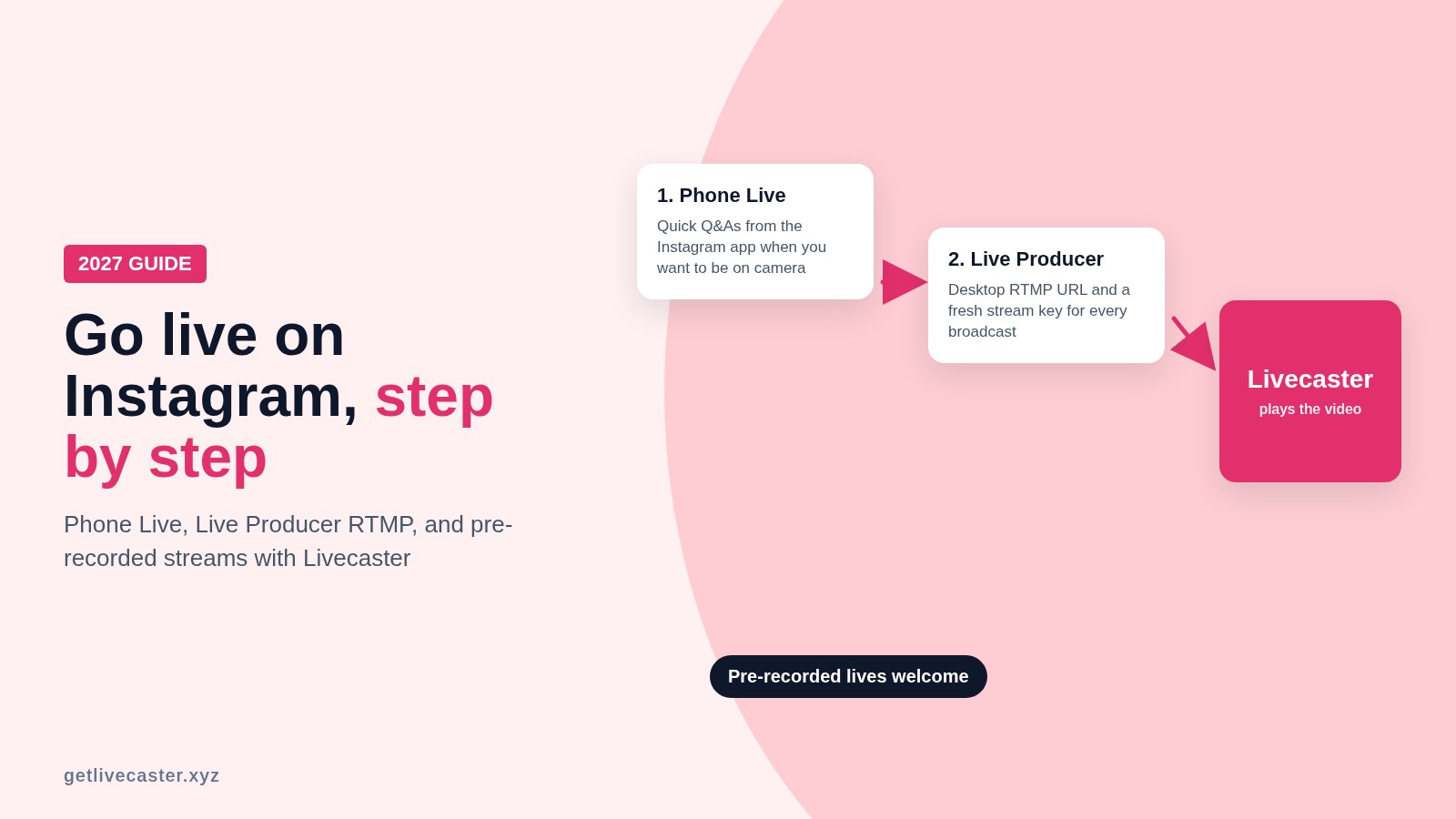
I first wrote about going live on Instagram back in late 2024. Instagram has moved a few pieces since then. The phone flow still works for quick Q&As, but Live Producer on the web is now the official door for desktop and RTMP streams, and Instagram itself says you need a public account with at least 1,000 followers before you can start a Live at all.
So this is a full rewrite. I'll walk you through the phone path, the Live Producer and RTMP path, and when it makes more sense to stream a pre-recorded video with Livecaster 24x7 instead of staring at your front camera for an hour. Full disclosure up front. Livecaster is made by us at Teknikforce. I'll stick to what the sales page actually lists, and I'll also tell you when going live from a phone alone is the better call.
If you want the Facebook version of this guide, I refreshed that one too at How to Go Live on Facebook in 2027.
What you need before you hit Go live
Instagram's own help pages are clear on a few hard gates.
- A public Instagram account with 1,000 or more followers. Below that, Live simply isn't available.
- The latest Instagram app if you're going live from a phone.
- A Professional account (Creator or Business) if you want Live Producer on the web and an RTMP stream key.
- A steady connection. Phone WiFi is fine for short lives. For longer desktop streams, wired ethernet or a strong connection helps.
Teen accounts have Live off by default. Under 16 needs a parent or guardian to turn it on. Newly created accounts, or accounts that have had content removed for Community Standards, may also be blocked from Live.
None of that is marketing talk. It's Instagram's own wording as of late 2026.
Path 1. Go live from the Instagram phone app
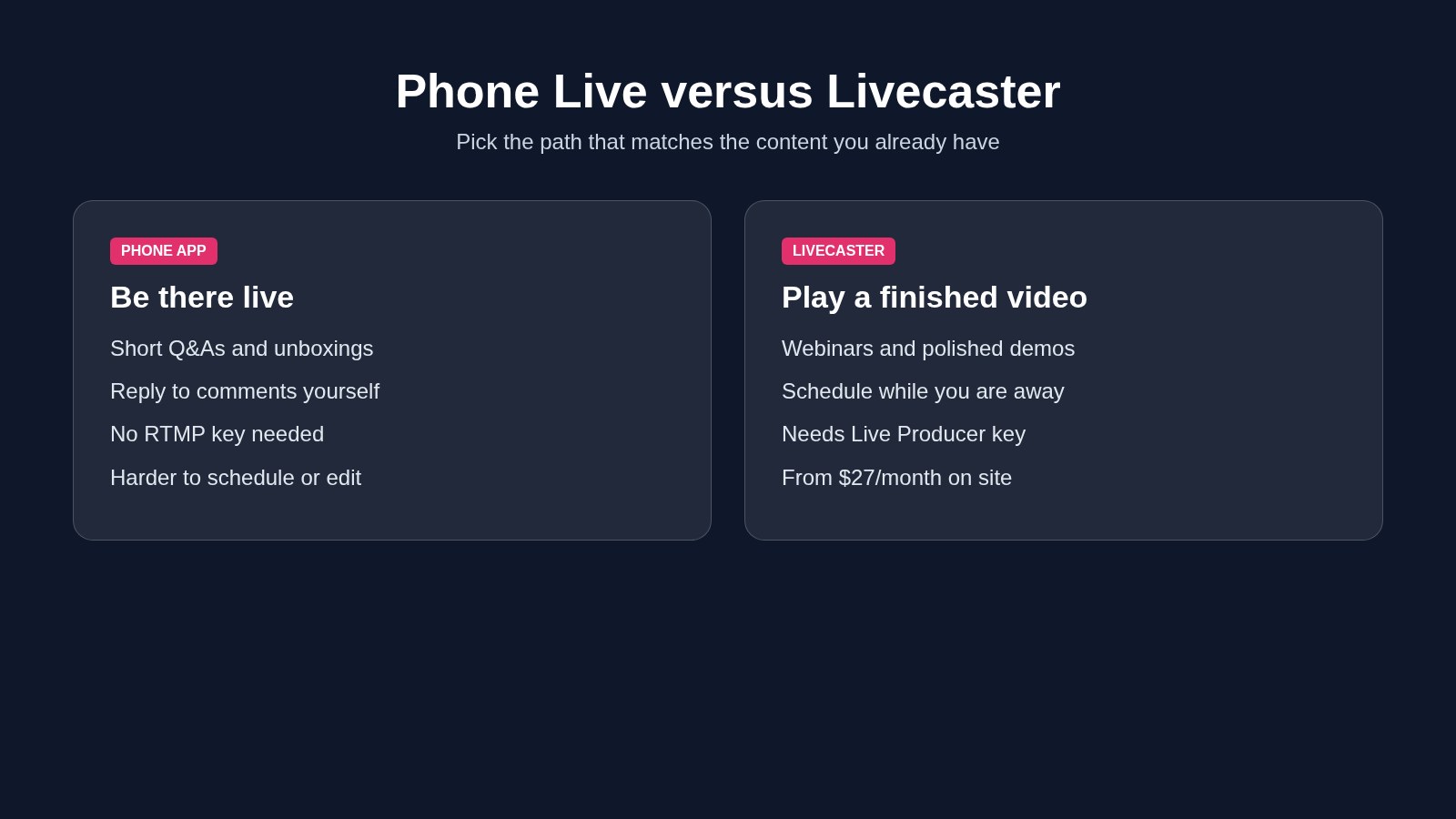
This is still the fastest way for a short, casual Live. Think a 15 minute Q&A, a product unboxing, or a store walkthrough.
- Open Instagram on your phone and switch to the account you want to broadcast from.
- Open your camera from Stories, or tap the create button and choose Live if your app shows it that way.
- Add a title that tells people what the Live is about.
- Check your lighting and sound. Face a window if you can. Put the phone on a stand so you're not hand-holding for half an hour.
- Tap Start Live when you're ready. Greet people as they join and answer comments as you go.
- When you're done, end the Live. Save the replay to your archive if you want to share it later.
Good for. Short, real-time chats where being on camera is the whole point.
Weak for. Long webinars, edited demos, multi-camera setups, or going live while you're asleep. The phone app won't schedule a pre-recorded video for you.
Path 2. Go live from a computer with Live Producer and RTMP
Instagram Live Producer is the web tool that hands you a temporary RTMP URL and stream key. You paste those into streaming software, start the software, then click Go live inside Live Producer. Instagram's help center is explicit that the stream key is not static. It refreshes every time you open Live Producer.
Who can use Live Producer
You need a Professional account, and you open Live Producer from a computer at instagram.com. Some accounts still don't see the Live video option. The only real test is to log in, click Create, and look for Live video. If it's there, you're in.
Steps that match Instagram's current help page
- On a computer, open instagram.com and sign in.
- Click Create, then Live video.
- Enter a title and pick an audience. Practice lets you test with nobody watching. Public goes to your followers.
- Copy the Stream URL and Stream key. Leave that tab open. Closing it can kill the key.
- In your streaming software, choose a custom RTMP destination and paste the URL and key.
- Start the stream in your software. Wait for the preview to appear in Live Producer. It can take a few seconds.
- Click Go live in Live Producer.
- When you want to stop, end the Live in Live Producer first, then stop the software. If you stop the software first, Instagram can freeze on the last frame.
That's the official flow. Third-party guides from Restream and others match it, and they also warn that you must grab a fresh key before every broadcast.
What you can send through RTMP
Anything your encoder can output. A webcam, a multi-camera OBS scene, a screen share, or a pre-recorded video file. Instagram receives the feed the same way either way. The difference is whether you sit there live, or you press play on something you already edited.
Path 3. Stream a pre-recorded video with Livecaster
This is where Livecaster 24x7 sits. It's a desktop app for PC and Mac that streams pre-recorded videos as Live broadcasts to Instagram and other RTMP platforms. You still get Instagram's Live treatment, the Watch Live button, and the reach bump. You don't have to be on camera for every minute of it.
According to the Livecaster sales page, you can
- Livecast a single video or a collection of videos in sequence
- Schedule lives so they start when you're away
- Run looping 24x7 style streams on supported platforms
- Go live on multiple channels or platforms at once
- Convert common video formats inside the app
- Get email alerts if a scheduled stream fails
Price on the sales page. Elite starts at $27/month, with a 30 day refund and 24/6 chat support. There's a Pro upgrade inside for unlimited hours and more computers. Yearly and bundle pricing on the page can change, so check getlivecaster.xyz before you buy.
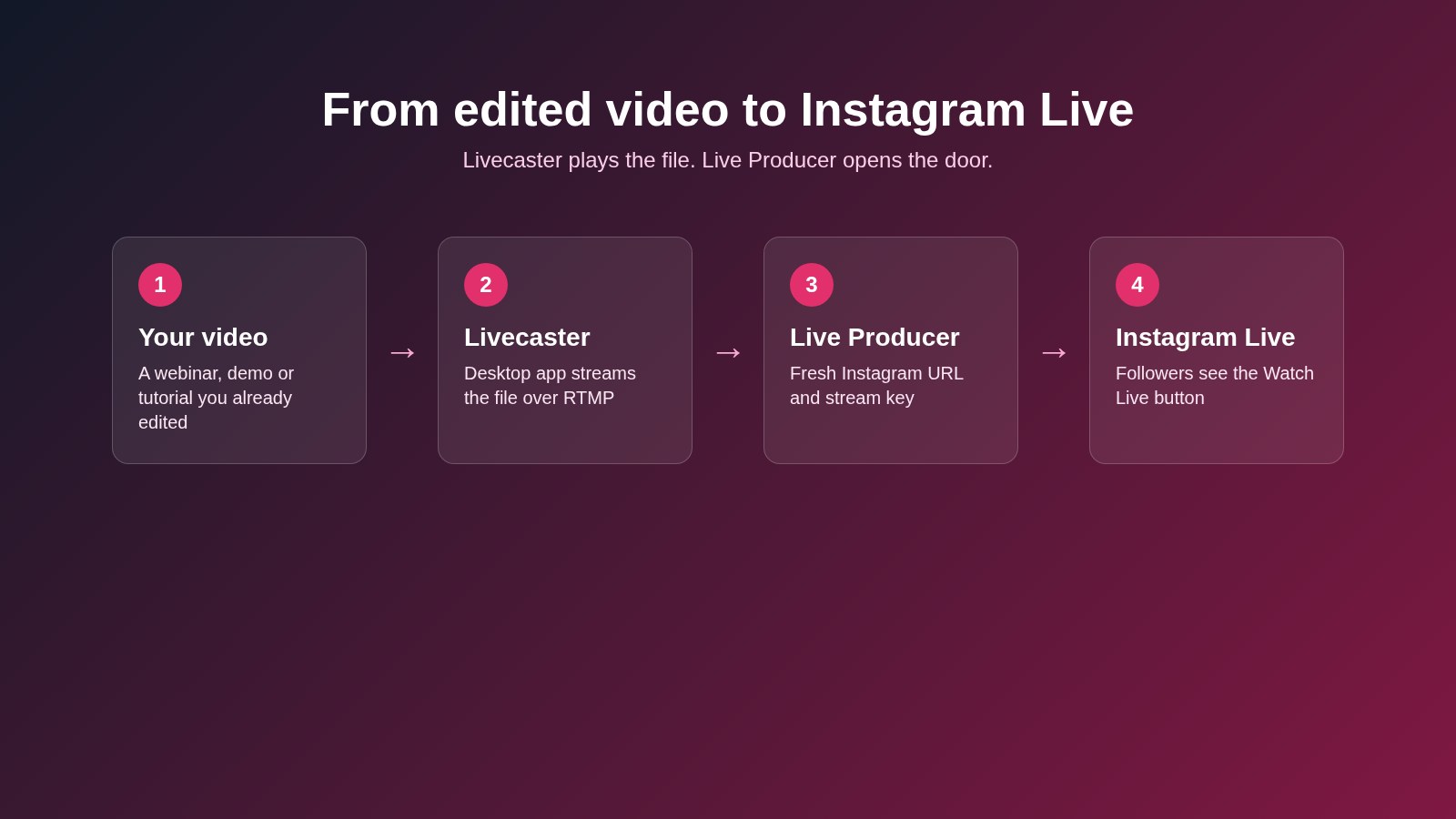
Why I'd pick it for Instagram. If your best content is already recorded, a webinar replay, a tutorial series, a product demo you polished last week, Livecaster turns that into an Instagram Live without you hosting it live every time. You still use Live Producer for the Instagram key. Livecaster is the encoder that plays the file.
Where it falls short. You still need Live Producer access and a fresh stream key each session. You also need to keep the computer on while it streams, or run it from a cheap VPS. And you should only stream content you have the rights to.
Quick setup with Livecaster and Instagram
- Install Livecaster 24x7 on your PC or Mac and sign in.
- On Instagram.com, open Live Producer and copy the Stream URL and stream key for this session.
- In Livecaster, add an Instagram channel and paste those details.
- Pick the video or video collection you want to send.
- Start the stream in Livecaster, wait for the Live Producer preview, then click Go live on Instagram.
- End in Live Producer first when you're done.
Livecaster versus going live from a phone only
| Phone app only | Livecaster plus Live Producer | |
|---|---|---|
| Best for | Short, casual lives | Edited videos, webinars, scheduled lives |
| On camera | Yes, you host it | Optional. You can stream a pre-recorded file |
| Scheduling | No real scheduling | Yes, per the sales page |
| Multi platform | One platform at a time | Multiple channels at once |
| Gear | Phone and a stand | Computer, Livecaster, Instagram Live Producer |
| Starting price | Free with Instagram | From $27/month on the Livecaster page |
| Fresh RTMP key | Not needed | Needed for every Instagram session |
If you're answering comments in real time and the energy of being live is the product, use the phone. If the content is already good on disk and you want the Live boost without another hour on camera, use Livecaster.
A simple pre-live checklist
I keep a short list next to the keyboard so I don't forget the boring stuff.
- Confirm the account has 1,000 followers and Live is allowed in account status.
- Write a one sentence title that says what people will learn.
- Test audio for ten seconds in Practice mode if you're on Live Producer.
- If you're using Livecaster, load the video file and confirm the length.
- Copy a fresh Instagram Stream URL and stream key right before you go.
- Tell your audience in Stories about 30 minutes ahead, then again at five minutes.
- After you end, save the replay and pull one clip for a Reel the next day.
That last step turns one Live into two pieces of content without filming twice.
Tips that still hold up in 2027
- Promote ahead of time. A Story countdown beats hoping people notice the Live badge.
- Open with the topic. New joiners arrive late. Restate what the Live is about every few minutes.
- Keep an eye on comments. On a phone Live you reply yourself. On a pre-recorded Live, pin a comment or have a teammate watch the chat.
- Respect the key. Treat the Instagram stream key like a password. Don't reuse an old one.
- Stay honest. If you're streaming a replay, say so. Viewers can tell when something is too polished to be off the cuff, and that's fine if you're clear about it.
A few common questions
Do I still need 1,000 followers to go live on Instagram?
Yes. Instagram's help center says only public accounts with 1,000 or more followers can start a Live. That gate applies whether you use the phone app or Live Producer.
How long can an Instagram Live run?
Most successful lives sit between 20 and 60 minutes. Longer is possible, but attention drops and the phone gets hot. For long webinars, a pre-recorded Live through Livecaster is usually kinder to everyone.
Does the Instagram stream key stay the same?
No. Instagram refreshes the key each time you use Live Producer. Copy a new pair before every broadcast and leave the Live Producer tab open until you go live.
Can I go live on Instagram and Facebook at the same time?
Yes, with multistreaming software. Livecaster supports going live on multiple channels at once. You still set up each platform's own destination, including a fresh Instagram key.
Is Livecaster a replacement for the Instagram app?
No. For Instagram specifically, Livecaster sends the video. Live Producer still starts and ends the Live on Instagram's side. Think of Livecaster as the player, and Live Producer as the door.
Ready to try a pre-recorded Instagram Live?
If your next Live is a polished demo, a course lesson, or a replay that already works, skip another shaky phone hour. Get Livecaster 24x7, paste today's Instagram stream key, and go live with the video you already trust. There's a 30 day refund if it isn't for you.
And if you're still figuring out pre-recorded lives in general, the beginner walkthrough at How to Run Your First Pre-Recorded Live Stream pairs well with this guide.