
You've planned the topic, set up the camera and told your followers. Then you spend ten minutes staring at a "Waiting for connection" screen because the stream key was wrong.
Sound familiar?
Facebook Live is still one of the easiest ways to reach people in real time. Meta's apps (Facebook, Instagram, Messenger and WhatsApp) were used by 3.64 billion people a day on average in September 2026 (Meta Q3 2026 results). But the buttons, menus and rules have changed since I first wrote this guide in 2024.
In this updated guide I'll show you three ways to go live on Facebook in 2027: from your phone, from your computer with Live Producer, and with a pre-recorded video so you don't have to be on camera at all. I'll also cover the new rules you need to know, like Facebook deleting live videos after 30 days.
What is Facebook Live?
Facebook Live lets you broadcast real-time video to your profile, a Page, a group or an event. Viewers can comment and react while you're live, and Facebook notifies some of your followers when you start.
It's free. You need a Facebook account, a camera (your phone counts), and a steady internet connection.
Before you start: the 2027 requirements
Meta's help center lists a few rules you need to meet before you can go live (Meta Business Help Center):
- Your account must be at least 60 days old.
- Your Page or professional-mode profile needs at least 100 followers.
- To go live from a Page, you need Facebook access or task access to create content.
Two other changes catch people out:
- Live videos are deleted after 30 days. Since February 2025, Facebook only keeps live videos for 30 days. After that they're removed unless you download them or turn clips into Reels (Meta newsroom).
- Streaming software is desktop-only. Using a stream key with an encoder works from a computer, not the mobile app (Meta).
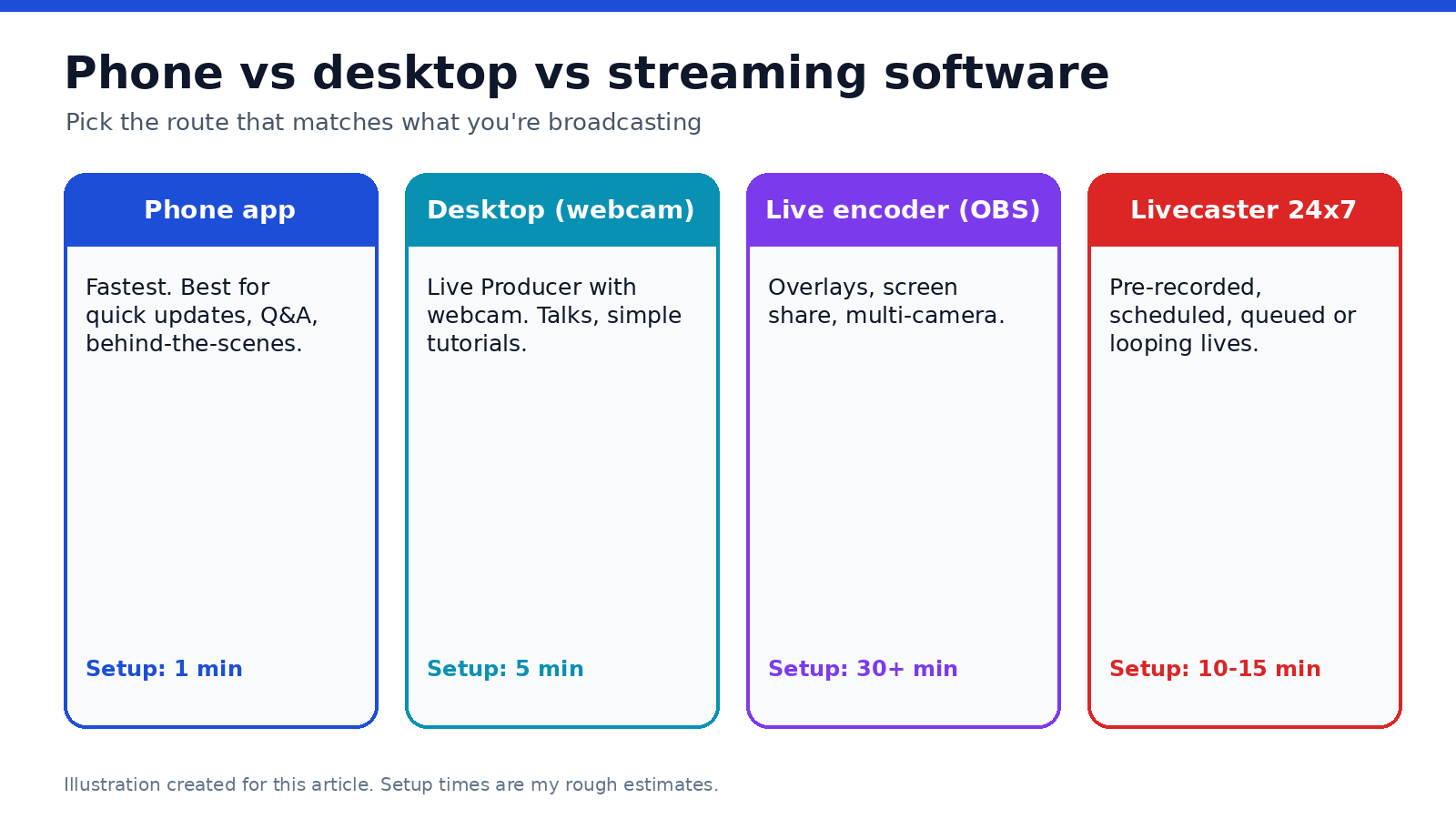
Phone vs desktop vs streaming software: which should you use?
Here's the quick answer before we get into the steps.
| Option | Best for | Setup time | Cost | Pre-recorded video? | Scheduling |
|---|---|---|---|---|---|
| Livecaster 24x7 (our pick for pre-recorded) | Edited videos, webinars, replays, 24/7 channels, multistreaming | 10-15 min the first time | From $27/month | Yes, single videos or queues | Yes, plus looping |
| Facebook mobile app | Quick updates, Q&A, behind-the-scenes | About 1 min | Free | No | No |
| Desktop with webcam (Live Producer) | Talks, simple tutorials | About 5 min | Free | No | Yes, via Live Producer |
| Live encoder (e.g. OBS Studio) | Overlays, screen share, multi-camera shows | 30+ min | Free (OBS) | Possible, but you run it manually | You start it yourself |
Setup times are my rough estimates.
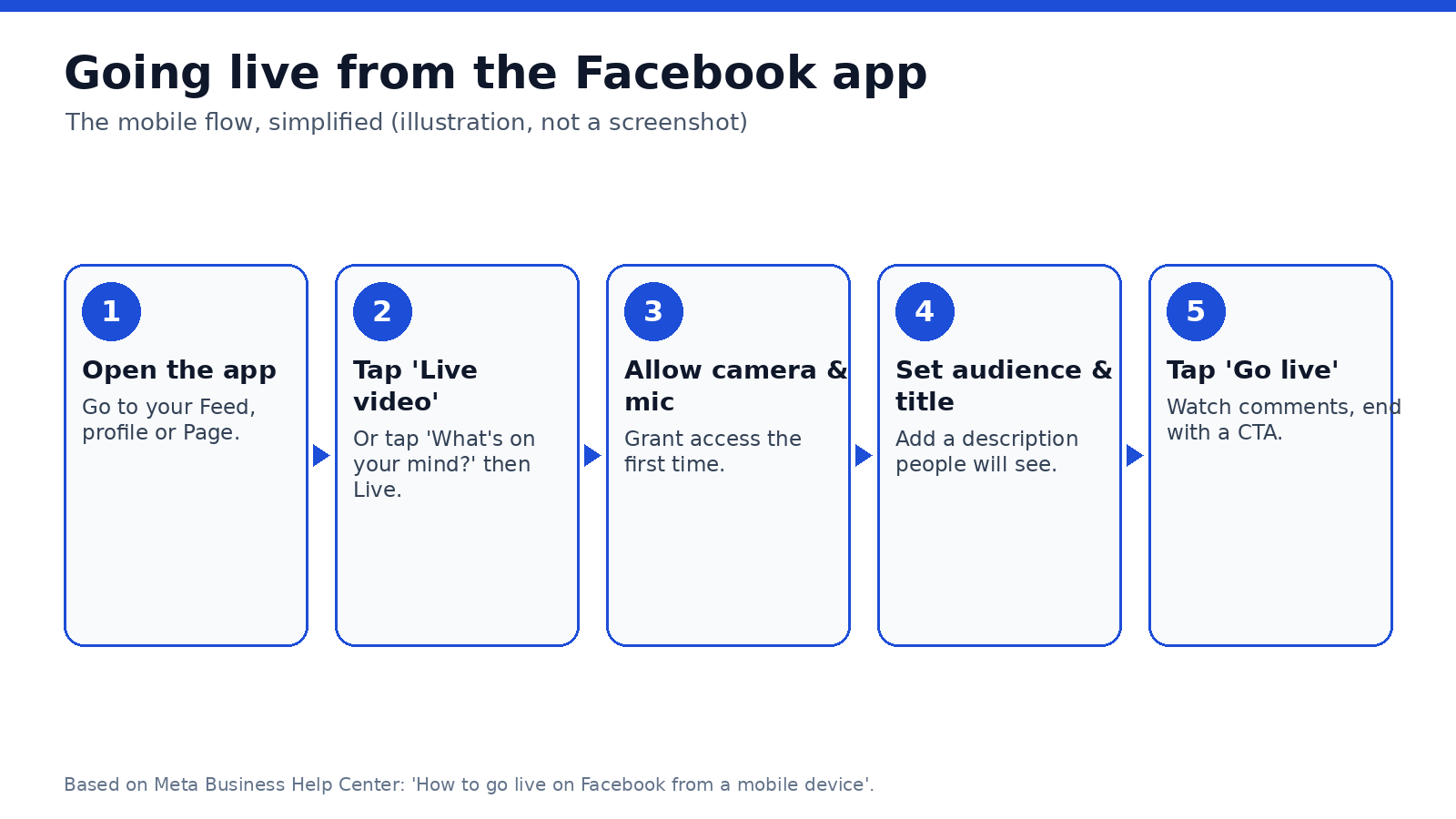
Method 1: How to go live on Facebook from your phone
This is the fastest route. Based on Meta's current mobile instructions (Meta):
- Open the Facebook app and go to your Feed, profile or Page.
- Tap "Live video." You can also tap "What's on your mind?" and choose Live video.
- Allow camera and microphone access if it's your first time.
- Choose your audience and add a description. Make the first line a hook, because that's what shows in the feed.
- Tap "Go live."
- When you're done, tap "End." You can then share the video to your profile or Page.
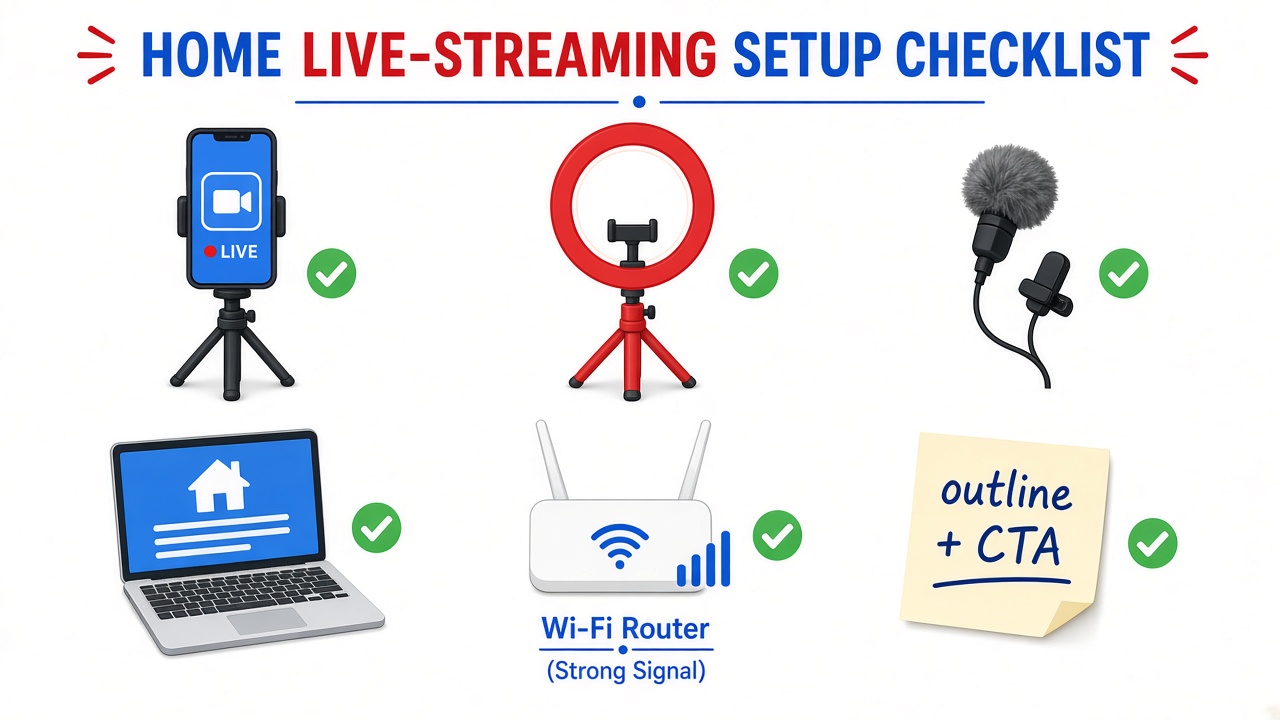
My tips for phone lives:
- Shoot in landscape if you plan to reuse the video elsewhere, portrait if it's mainly for mobile viewers.
- Use a tripod and a cheap clip-on mic. Shaky video and echoey audio lose viewers fast.
- Switch on Do Not Disturb so calls don't interrupt you.
Method 2: How to go live on Facebook from your computer (Live Producer)
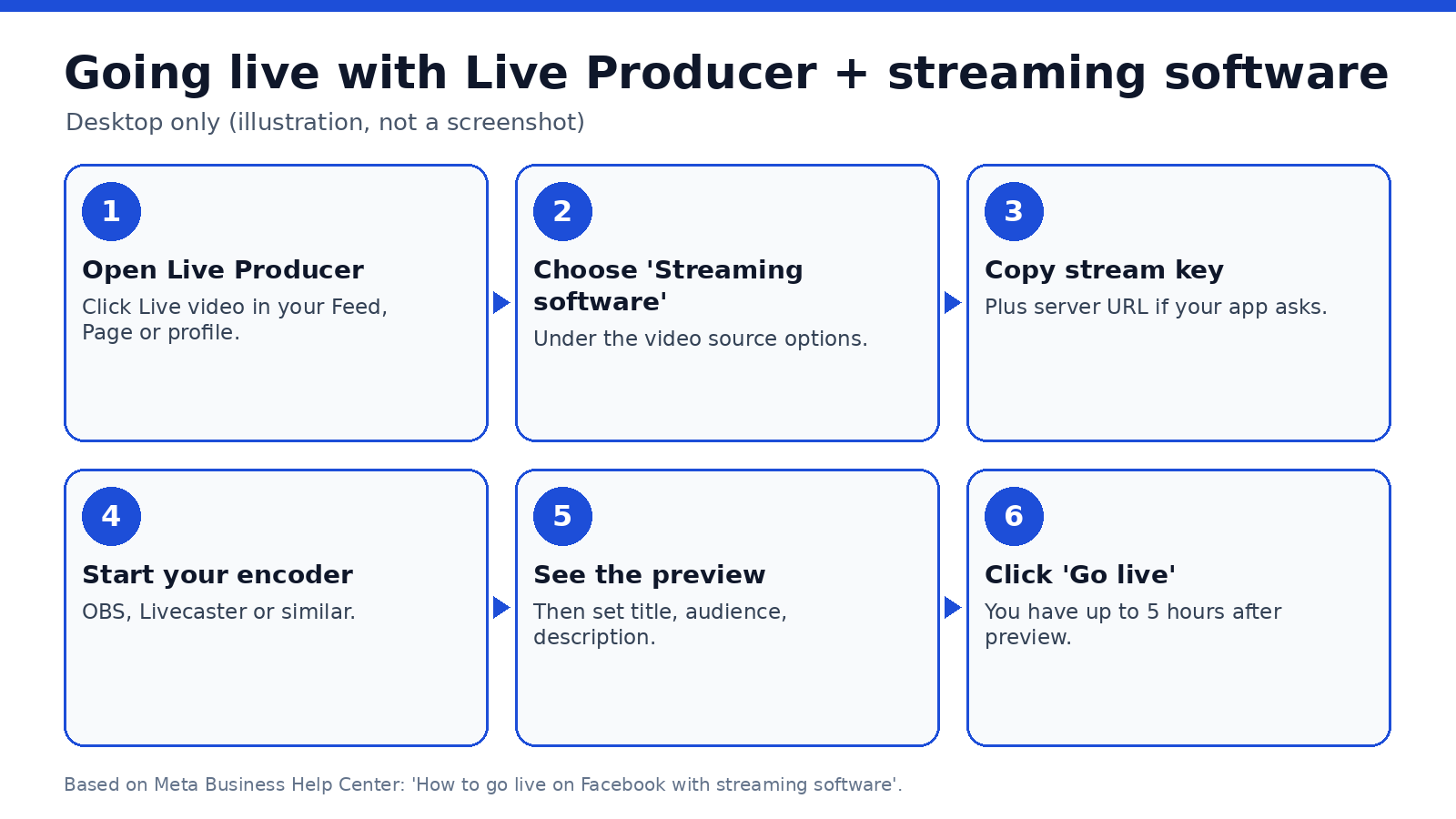
Live Producer is Facebook's desktop tool for going live. You can use your webcam directly or connect streaming software. Here's the streaming-software route, from Meta's help center (Meta):
- Click "Live video" in your Feed, Page or profile. This opens Live Producer.
- Under "Go live," click Select.
- Choose "Streaming software" as your video source.
- Copy your stream key (and the server URL if your software asks for it).
- Paste them into your streaming software and start streaming from there.
- Wait for the preview to appear in Live Producer.
- Add a title, description and audience, then click "Go live."
Two settings worth knowing:
- The 5-hour window. Once Facebook receives your preview, you have up to 5 hours to go live. If you stop the preview, you can't resume it with the same key (Meta).
- Persistent stream key. If you go live on a regular schedule, turn on a persistent stream key in Live Producer's settings so you don't have to paste a new key every time (Meta).
If stream keys and RTMP still feel like magic, our plain-English guide to the best software to live stream explains how encoders work.
Method 3: How to go live on Facebook with a pre-recorded video
Here's the method I use most.
Going live in real time has a cost. You have to be free at the right hour, look presentable, and get everything right in one take. Miss a slide or lose your train of thought, and it's out there.
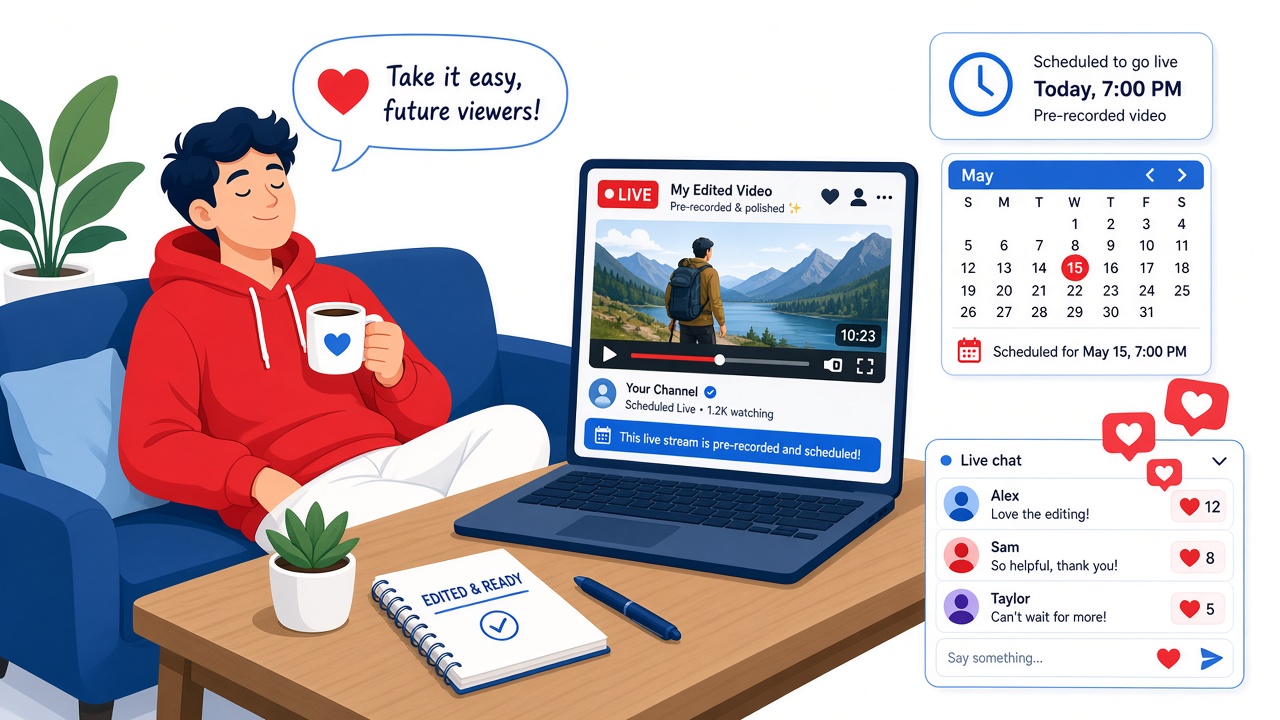
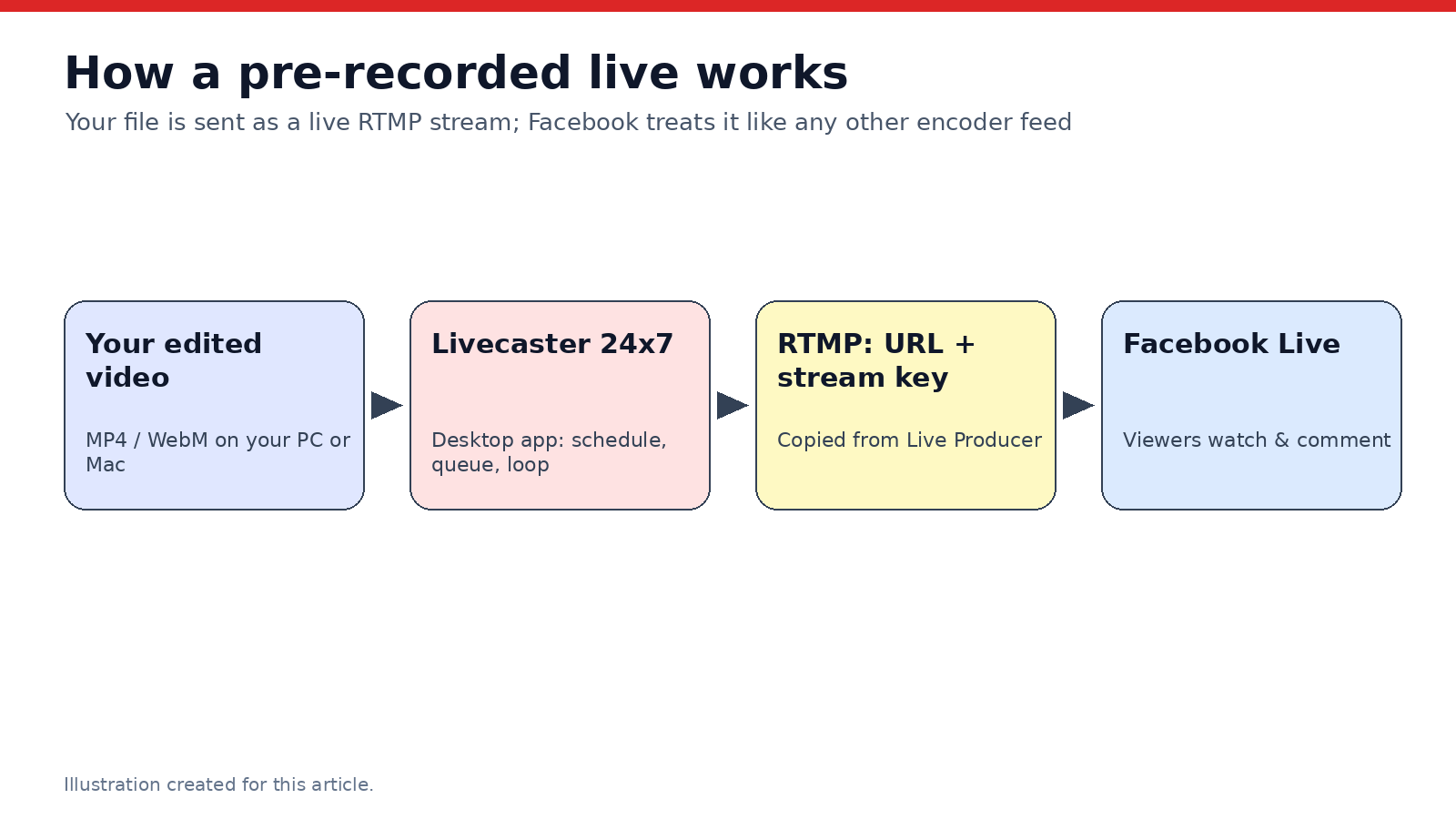
A pre-recorded live solves that. You record and edit your video when it suits you, then stream it as a live broadcast at the time your audience is online. Facebook receives it through the same stream key route as any other encoder.
Why I recommend Livecaster 24x7 for this
You can play a video file through OBS, but you have to sit there and press the buttons. Livecaster 24x7 is our desktop app at Teknikforce, built specifically for streaming pre-recorded video as live. According to its sales page, it lets you:
- Go live with pre-recorded videos on Facebook, YouTube, TikTok, Instagram, Twitch, Amazon and other RTMP platforms.
- Schedule livecasts so they start while you're away.
- Queue several videos into one "Stream" that plays back to back.
- Loop a stream for 24/7 channels.
- Multistream to several channels at once.
- Convert video formats with a built-in converter (MP4, WebM and others).
- Get email alerts if a scheduled livestream fails.
It runs on Windows PC and Mac. Because it streams from your computer, the computer has to stay on during the broadcast (or you can run it on an inexpensive VPS).
Step by step: scheduling a pre-recorded Facebook Live with Livecaster
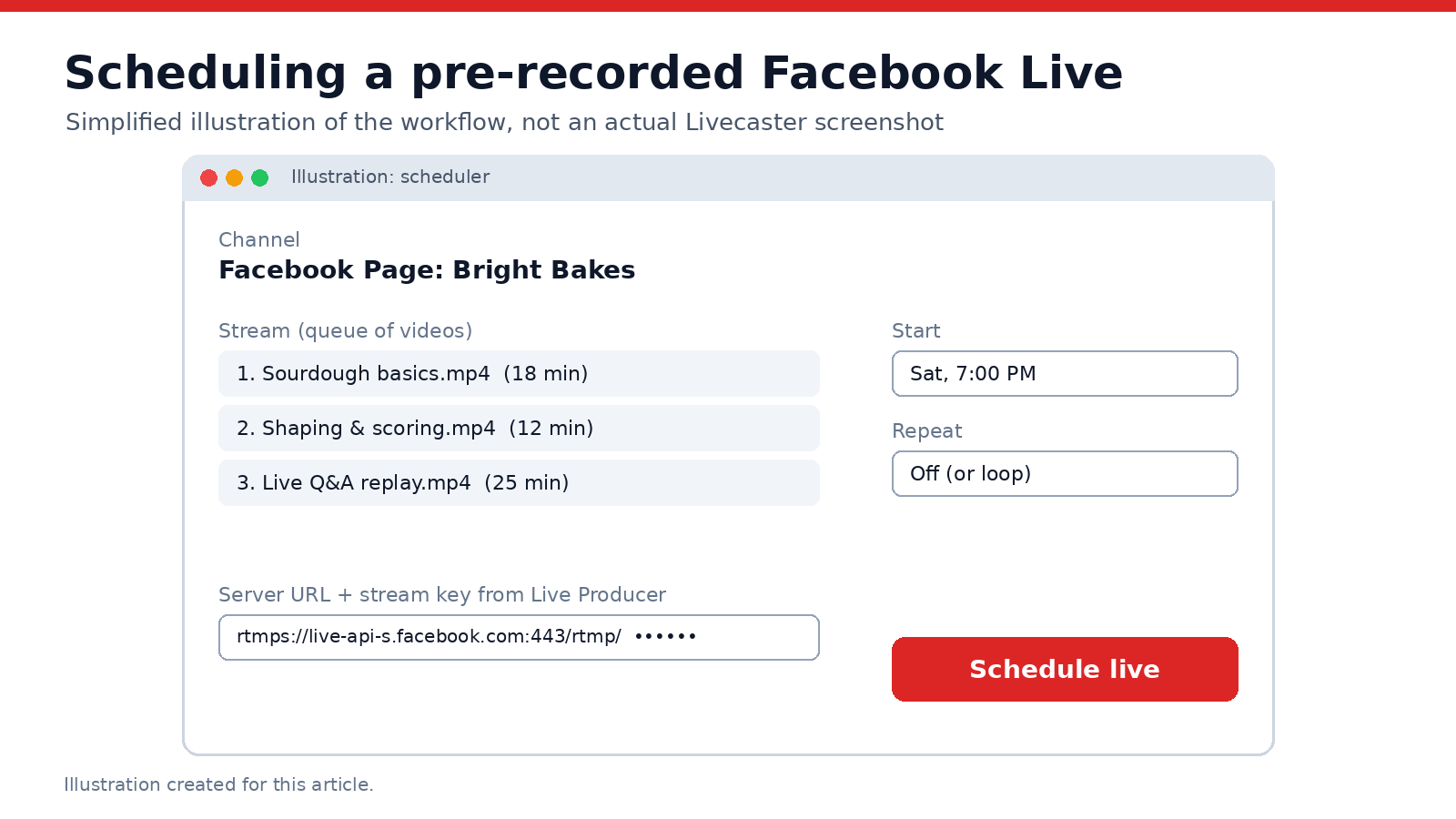
- Install Livecaster 24x7 on your PC or Mac and sign in.
- In Facebook, open Live Producer and choose Streaming software. I suggest turning on the persistent stream key for recurring shows.
- Copy the server URL and stream key.
- In Livecaster, add a Facebook channel and paste in the server URL, stream key and your Live Producer link.
- Add your video, or build a Stream of several videos in the order you want.
- Pick "Go live" now or schedule a start time.
- When Livecaster starts sending, check the preview in Live Producer and click "Go live" if your setup needs it.
- Be in the comments. The video is pre-recorded, but you can still reply live. That's the best of both worlds.
One honest note: be upfront with your audience. Saying "this session was recorded earlier, but I'm here in the comments" builds more trust than pretending. Only stream content you own or have rights to, and follow Meta's terms. For a deeper walkthrough, see our beginner's guide to pre-recorded live streams.
How to get more viewers on your Facebook Live
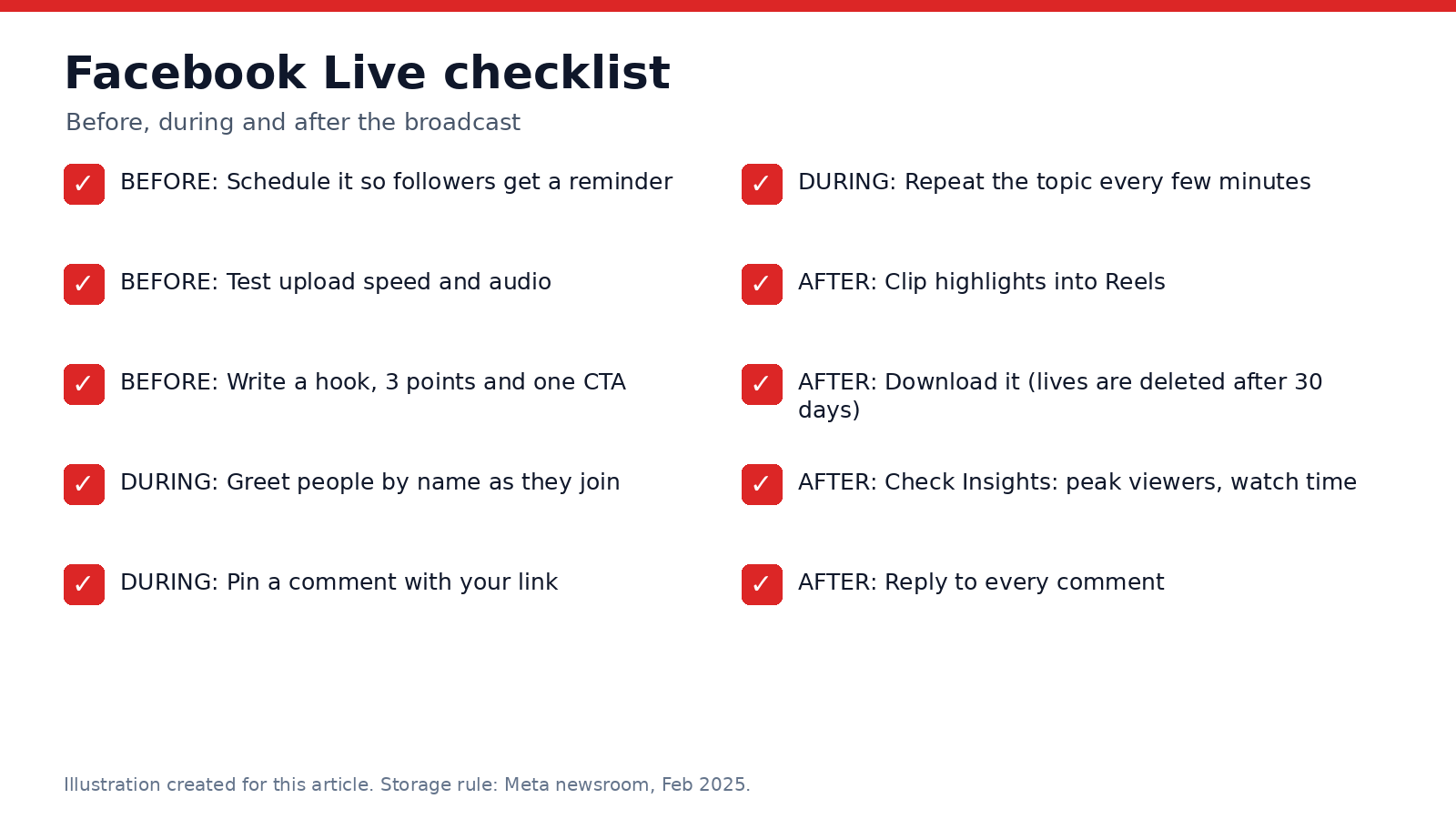
Schedule it in advance. Scheduling creates an announcement post so followers can get a reminder. Promote it in Stories, groups and your email list.
Go live when your audience is online. Check your Page insights to see when your followers are most active. Don't rely on generic "best times" lists; your audience is the only one that matters.
Hook them in the first 30 seconds. Say what they'll get and why they should stay.
Talk to the comments. Greet people by name, answer questions, and pin a comment with your link.
Repeat the topic every few minutes. People join late. Help them catch up.
End with one clear call to action. One. Not five.
After the live: don't lose your video
This is the step most people skip, and in 2027 it costs you.
Because Facebook now deletes live videos after 30 days, you need a plan (Meta):
- Download the full video from your Page or profile.
- Clip the best moments into Reels so the content keeps working.
- Check Insights for peak viewers, average watch time and engagement.
- Re-stream your best lives later as pre-recorded broadcasts with Livecaster.
How Livecaster 24x7 helps
If you want the reach of live video without being on camera every time, here's what Livecaster 24x7 gives you, according to its sales page:
- Pre-recorded lives on Facebook and other major platforms.
- Scheduling, queues ("Streams") and looping for 24/7 channels.
- Multistreaming to several channels at once.
- HD streaming and built-in video conversion.
- Reports and failure alerts so you're never caught off guard.
- No per-minute fees or credits.
Pricing: the Elite plan is $27/month or $127/year. It includes up to 5 channels, 5 video collections, 5 simultaneous live streams, up to 500 streaming hours a month, a 1-computer license and a business-use license. A Pro upgrade inside the app unlocks unlimited livecasts. Every plan has a 30-day money-back guarantee and 24/6 chat support.
Final thoughts
Going live on Facebook isn't hard. The phone app gets you live in a minute, and Live Producer gives you more control from a desktop.
But if you want to go live consistently without rearranging your life around a camera, a pre-recorded live is the smarter move. Record once, edit it properly, and let it go live while you answer comments.
Frequently asked questions
Can I go live on Facebook with a pre-recorded video?
Yes. Facebook accepts any feed sent through streaming software with your stream key. A tool like Livecaster 24x7 lets you schedule and stream a pre-recorded video as a live broadcast. Be transparent with viewers and only use content you have rights to.
Why can't I go live on Facebook?
Check the basics first. Meta requires your account to be at least 60 days old, and your Page or professional-mode profile needs at least 100 followers. If you're using a Page, you need content-creation access.
How long do Facebook Live videos stay on my Page?
Since February 2025, Facebook keeps live videos for 30 days and then deletes them. Download them or turn highlights into Reels before then.
Can I go live on Facebook from my phone with streaming software?
No. Streaming software with a stream key is a desktop feature in Live Producer. On a phone, you go live directly with the Facebook app.
What is a persistent stream key?
It's a stream key that stays the same between broadcasts. Turn it on in Live Producer if you go live regularly, so you don't have to update your software each time.
How long do I have to go live after starting my preview?
Up to 5 hours, according to Meta. If you need more time, create a new key closer to the event.
Can I stream to Facebook and YouTube at the same time?
Yes, with multistreaming software. Livecaster 24x7 supports going live on multiple channels at once.
Go live without being on camera
Record your best content once, then schedule it to go live on Facebook and other platforms, on repeat if you like. 30-day money-back guarantee.