
Live video feels scary the first time.
What if the stream drops? What if nobody shows up? What if you freeze?
Here's the truth. Going live on YouTube takes about five minutes to set up, and YouTube pushes live streams hard with notifications and a big red Live badge.
This guide walks you through every way to go live in 2026, step by step. You'll also learn how to stream a video you already recorded, so you can be live without being on camera.
What Is YouTube Live?
YouTube Live lets you broadcast video to your channel in real time. Viewers can watch, chat and react while it happens.
When the stream ends, it stays on your channel as a regular video. So one live stream gives you a live audience today and a video that keeps getting views later.
Live Stream or Premiere?
People mix these up a lot.
A live stream happens in real time. You talk to the camera, or a tool streams a video, and viewers watch it as it happens.
A Premiere is a regular uploaded video that plays for everyone at a set time, with a countdown and live chat. It feels like an event, but it can only play one new video once.
Both get people watching together. Live streams give you far more freedom.
Why Go Live on YouTube?
Notifications. Subscribers get alerted when you go live, which a normal upload doesn't always do.
Real connection. Answering questions by name builds trust faster than any edited video.
More watch time. Streams are long, and watch time helps your whole channel.
Money. Super Chats, Super Stickers and memberships let fans support you during a stream once you're in the YouTube Partner Program.
Easy content. A one-hour Q&A can become a full video, five Shorts and a blog post.
What You Need Before You Go Live
- A verified channel. Verify your phone number at youtube.com/verify.
- Live streaming turned on. The first time you enable it, it can take up to 24 hours to activate.
- No live streaming strikes or restrictions in the past 90 days.
- A camera and mic. Your laptop webcam or phone is fine to start.
- A steady internet connection. Use a cable instead of Wi-Fi if you can.
Going live from your phone has a subscriber minimum. Going live from a webcam or an encoder doesn't, so anyone with a verified channel can start today.
4 Ways to Go Live on YouTube
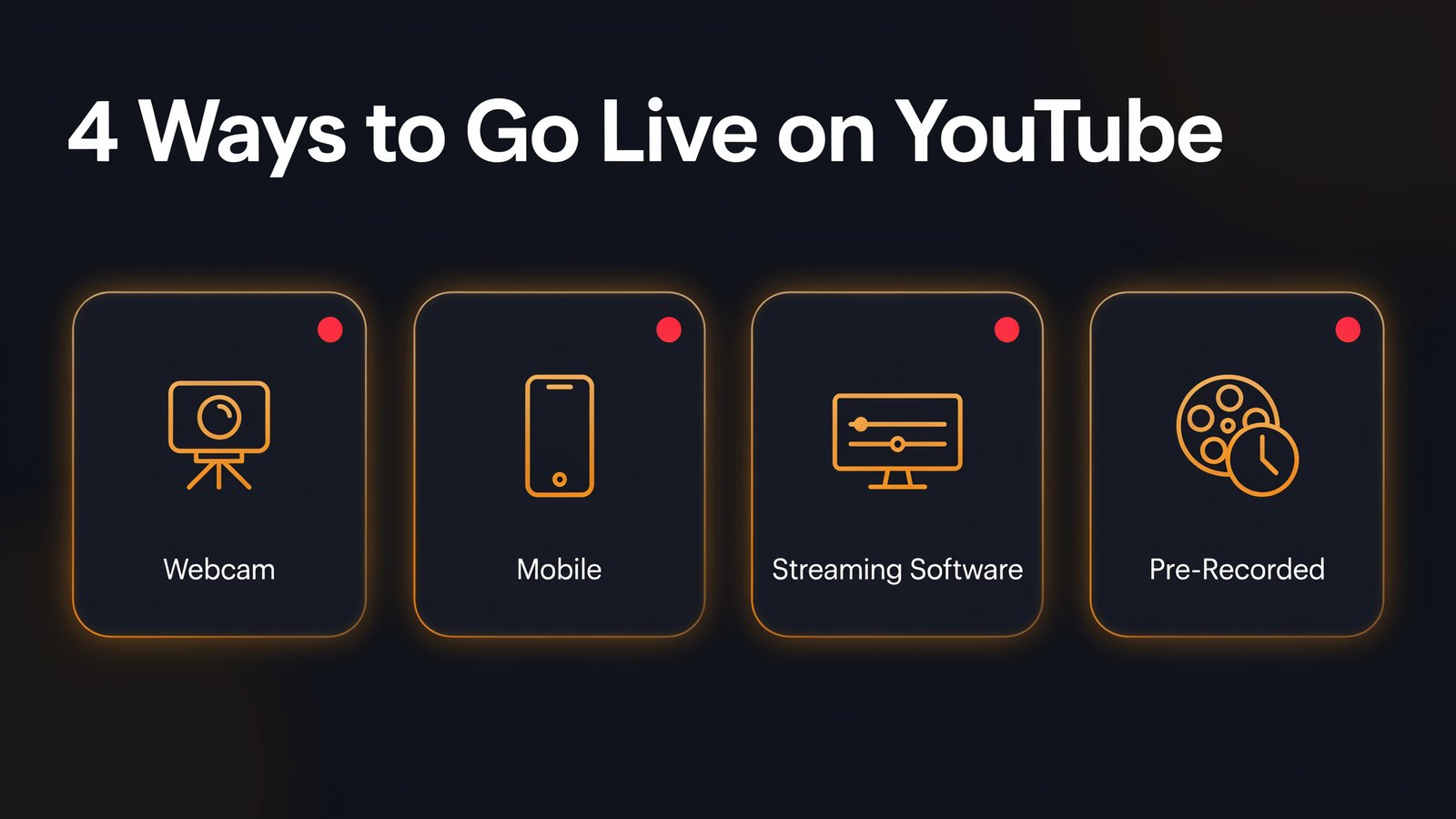
Webcam. Go live straight from your browser. Fastest and simplest.
Mobile. Go live from the YouTube app on your phone. Great for events and behind the scenes.
Streaming software. Use an encoder like OBS for screen sharing, overlays and multiple cameras.
Pre-recorded. Stream a video you've already made as live, with a tool like Livecaster 24x7.
How to Go Live With a Webcam
This is the easiest way to start.
- Open YouTube on your computer and sign in.
- Click the Create button (the camera with a plus) at the top right, then Go live.
- YouTube Studio opens the live control room. Choose Webcam if it asks.
- Allow YouTube to use your camera and microphone.
- Add a clear title, a description and choose who can watch (Public, Unlisted or Private).
- Pick a thumbnail or let YouTube take one.
- Click Go live.
That's it. To finish, click End stream at the bottom.
How to Go Live From Your Phone
- Open the YouTube app and tap the plus button at the bottom.
- Tap Live. The first time, YouTube may ask you to allow the camera, mic and location.
- Add a title and pick who can watch.
- Tap More options to schedule the stream or turn on chat settings.
- Take a photo for the thumbnail or upload one.
- Tap Go live.
Hold the phone sideways for a better viewing experience, unless you're going live for Shorts viewers.
How to Go Live With OBS or Other Streaming Software
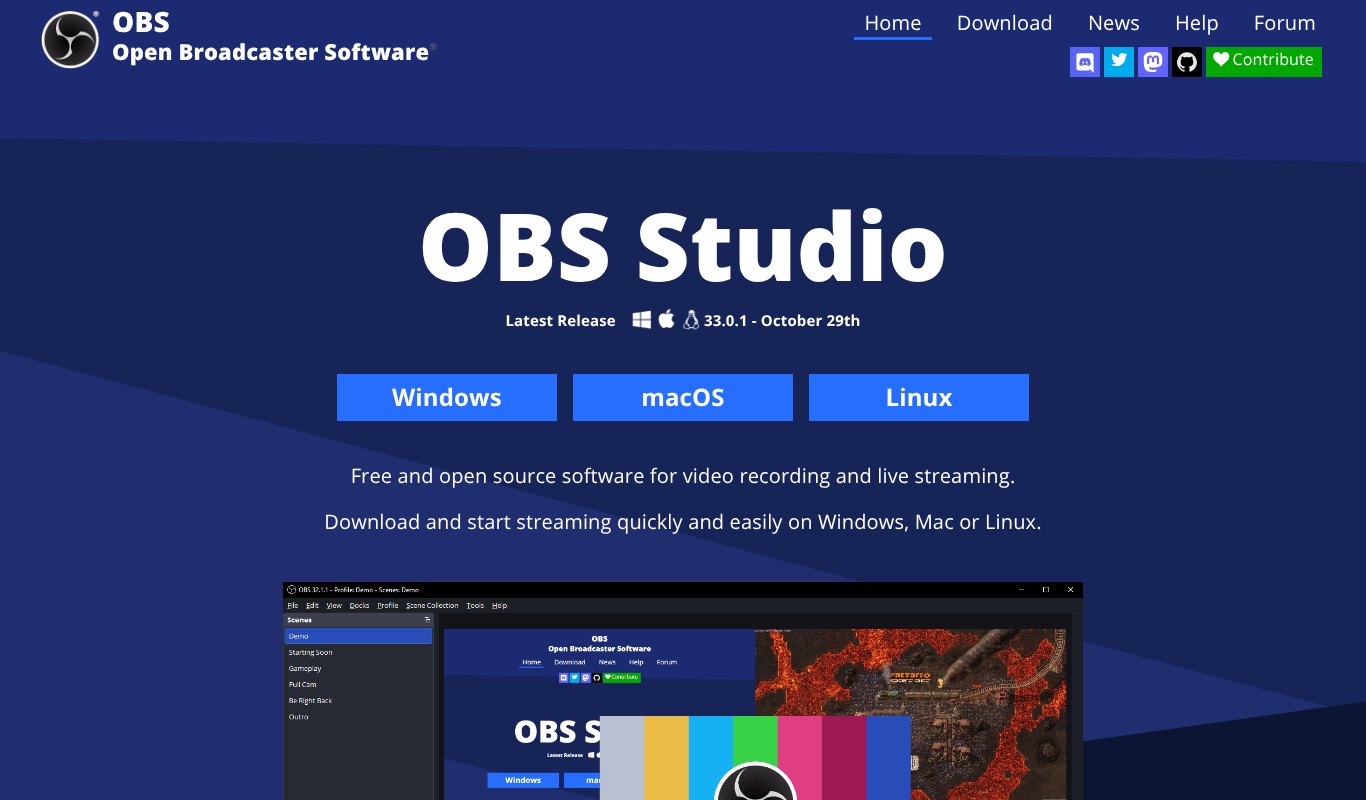
Streaming software, also called an encoder, is what most serious streamers use. OBS Studio is free and very popular.
- Download and install OBS Studio.
- In YouTube Studio, click Create, then Go live, and choose Stream.
- Copy your stream key. Treat it like a password.
- In OBS, open Settings, then Stream. Pick YouTube as the service and paste the stream key, or connect your account.
- Add your sources, like your camera, mic and screen.
- Click Start Streaming in OBS. YouTube shows a preview.
- Check the stream health panel in YouTube Studio, then you're live.
Encoders let you share your screen, add your logo, switch scenes and bring on guests. They take a little setup, but they look much more professional.
How to Stream a Pre-Recorded Video Live on YouTube
Here's a secret a lot of channels use. You don't have to be live to go live.
You can stream a video you already recorded, a playlist of videos, or even run a channel that's live 24 hours a day. Viewers still see the Live badge and get the notification.
YouTube's own Premieres feature plays one new video at a set time. For anything more, like old videos, playlists, loops or streaming to several platforms at once, you need a tool.
How to Do It With Livecaster 24x7
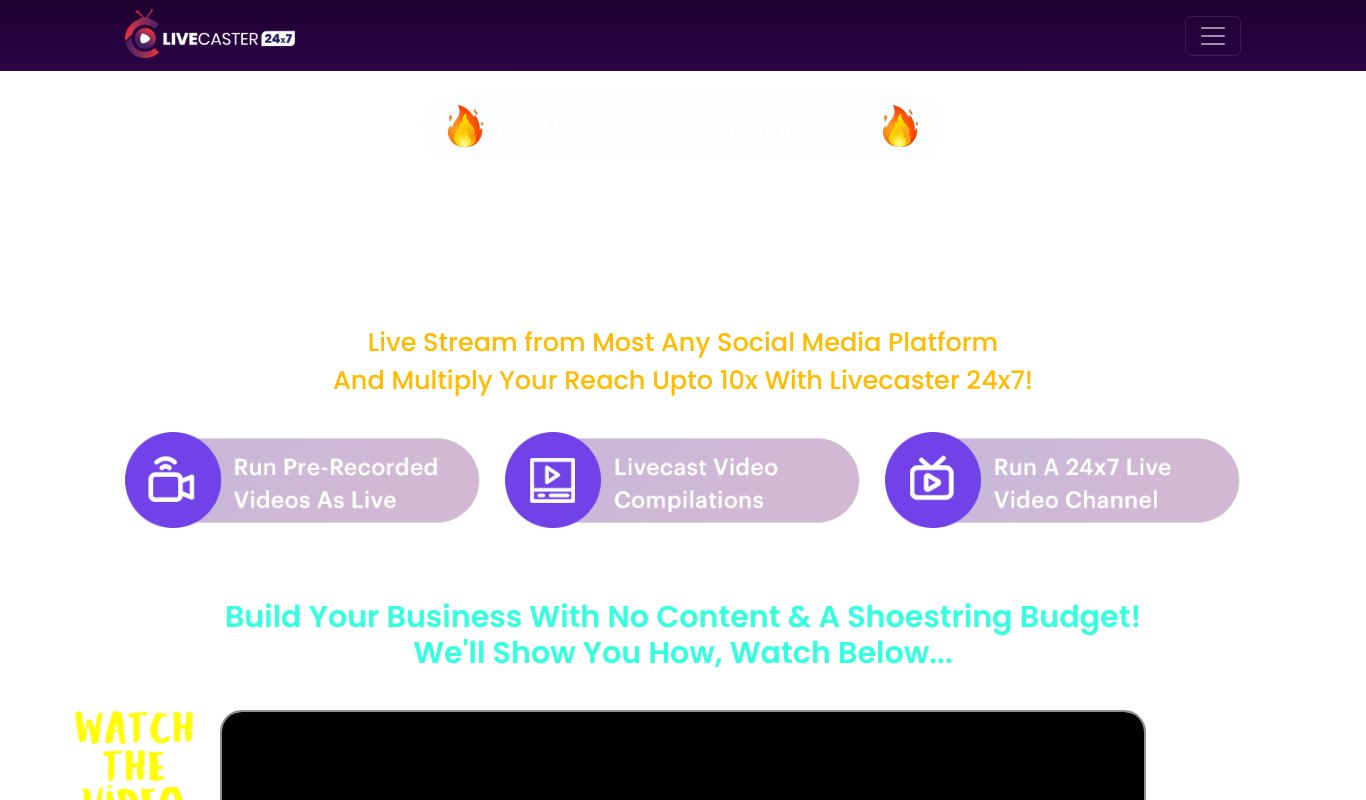
Full disclosure, Livecaster 24x7 is our own product, made by Teknikforce.
It turns any video you've already made into a live stream on YouTube, Facebook, Instagram, TikTok, Twitch and LinkedIn. You can stream one video, a collection of videos, or loop them into a 24/7 channel.
- Install Livecaster on your PC or Mac and connect your YouTube channel.
- Add your videos and arrange them into a collection.
- Pick the platforms you want to stream to.
- Set the date and time, or start right away.
- Livecaster goes live by itself and emails you if anything goes wrong.
It's perfect for replaying webinars, running music or study streams, and reaching viewers in other time zones while you sleep.
Pricing Just $5.58 a month, paid yearly ($67 a year), or $6.99 month to month, with a 30 day refund guarantee.
How to Schedule a YouTube Live Stream
Scheduling gives people time to show up. It's one of the easiest ways to get more live viewers.
- In YouTube Studio, click Create, then Go live.
- Click Schedule stream and pick the date and time.
- Add the title, description and thumbnail.
- Share the watch page link. Viewers can tap Notify me to get a reminder.
A scheduled stream shows up on your channel and in subscriber feeds before it starts. That's free promotion.
Settings That Make Your Stream Better
Latency. Choose Normal for the best quality, Low for chatty streams, or Ultra-low for real-time back and forth. Lower latency can mean lower quality.
Live chat. Turn it on, and set up slow mode or a moderator if your chats get busy.
DVR. Lets viewers rewind while you're still live.
Auto-start and auto-stop. Handy when you stream from software and don't want to click in two places.
Stream health. Keep an eye on this panel. It warns you about low bitrate or dropped frames before viewers notice.
Simple Gear for Better Streams
You can start with what you have. But a few cheap upgrades make a big difference.
A USB microphone. Viewers forgive fuzzy video. They don't forgive bad sound. A decent USB mic is the best first upgrade.
Light in front of you. Sit facing a window, or add a small ring light or softbox. Never sit with a bright window behind you.
A steady camera. Put your phone or webcam at eye level on a tripod or a stack of books.
A wired connection. An ethernet cable is far more reliable than Wi-Fi for long streams.
A second screen. Handy for reading live chat without looking away from the camera too much.
10 Live Stream Ideas to Try
Not sure what to stream? Pick one of these.
- Weekly Q&A where you answer viewer questions live.
- Tutorials where you teach a skill step by step.
- Product demos and launches for your business.
- Behind the scenes of your work, studio or shop.
- Interviews with experts, customers or other creators.
- Live reviews of products in your niche.
- Co-working or study sessions where people work along with you.
- Webinar replays streamed on a schedule with Livecaster.
- 24/7 music or relaxing channels that loop all day.
- Event coverage from conferences, games or local events.
The best stream idea is the one you can repeat every week. Consistency beats a single big show.
Live vs Pre-Recorded, Which Should You Choose?
Truly live streams are best for chat, Q&As and launches. People love talking to you in real time.
Pre-recorded streams are best for reach and consistency. You can be live in several time zones, keep a 24/7 channel running and replay your best content without being in front of a camera.
Most growing channels do both. A real live show once a week, plus scheduled replays the rest of the time.
Tips to Get More Live Viewers
- Go live at the same time each week. Habits bring people back.
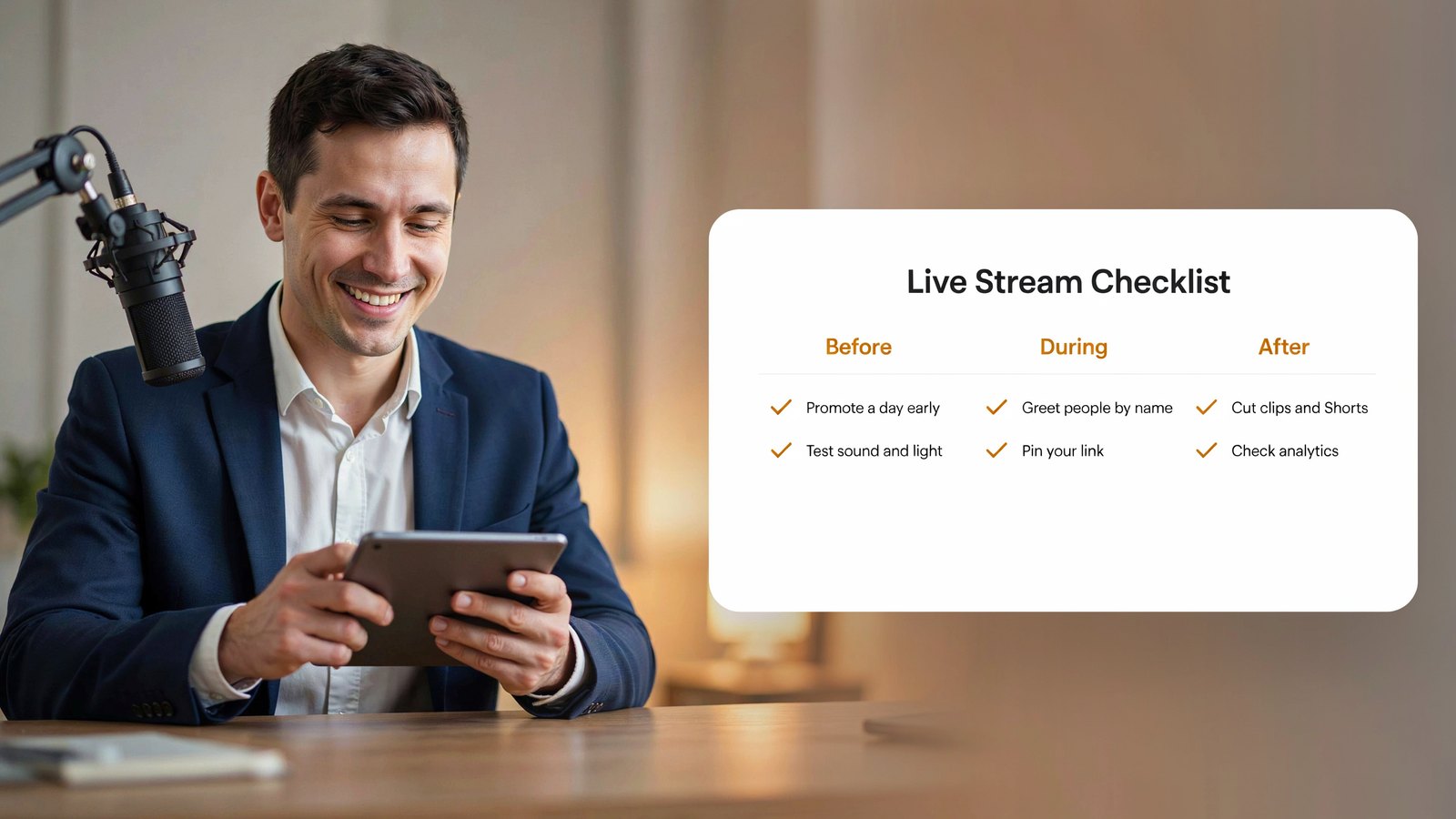
- Promote it a day early in your community tab, Shorts, email list and social media.
- Use a clear title that says what viewers will get, like a regular video.
- Say hello by name. People stay when they feel seen.
- Start strong. Don't wait five minutes for people to arrive. Give value right away.
- Pin a comment with your link or offer.
- End with a next step, like the next stream date or a video to watch.
What to Do After the Stream
Check the replay. Trim the dead air at the start and end in YouTube Studio.
Cut clips and Shorts. Your best two minutes can reach far more people than the full stream.
Look at your analytics. See when people joined and when they left, and adjust next time.
Stream it again. Use Livecaster to replay your best streams for viewers in other time zones.
Common Problems and Quick Fixes
Live streaming isn't available. Verify your phone number and wait up to 24 hours after you turn it on.
The stream keeps buffering. Lower your resolution or bitrate, close other apps and use a wired connection.
No sound. Check the mic is selected in YouTube or OBS, and that it's not muted.
YouTube says no data. Check you pasted the right stream key and that your software is actually streaming.
Frequently Asked Questions
Can anyone live stream on YouTube?
Yes. You need a verified channel with live streaming turned on and no recent restrictions. Webcam and encoder streams have no subscriber minimum.
Is it free to live stream on YouTube?
Yes. YouTube Live is free. OBS is free too. You only pay if you use paid tools like Livecaster for pre-recorded or 24/7 streams.
Can I stream a pre-recorded video as live on YouTube?
Yes. Premieres works for one new video. For old videos, playlists, loops and multistreaming, use a tool like Livecaster 24x7.
How long can a YouTube live stream be?
YouTube lets streams run for a very long time, and 24/7 channels are common. Streams longer than 12 hours may not be saved in full as a replay.
Do I need a fancy camera to go live?
No. A laptop webcam or a recent phone is enough to start. Good sound and good light matter more than an expensive camera.
Can I go live on YouTube and Facebook at the same time?
Yes. Multistreaming tools like Livecaster send one stream to several platforms at once, so you reach every audience with one setup.
What happens if my internet drops during a stream?
YouTube waits a short time for you to reconnect. If you're streaming with software, the stream usually picks up again once your connection is back. Streaming a pre-recorded video from a stable connection avoids most of these problems.
Do live streams help my channel grow?
They can. Live streams bring notifications, watch time and loyal fans who come back every week.
Final Thoughts
Your first stream won't be perfect. Nobody's is.
Pick one way to go live, set a time, and just start. Every stream gets easier.
And when you want to be live without being on camera, try Livecaster 24x7 to stream your best videos on autopilot for just $5.58 a month, paid yearly.