

Most people scroll past posts on LinkedIn. Very few scroll past a red Live badge.
LinkedIn Live lets you talk to your network in real time. Clients, buyers, hiring managers and peers can watch, comment and ask questions while you're on air. For B2B businesses, consultants and job seekers, few things build trust faster.
But going live on LinkedIn is a little different from other platforms. You can't just tap a button on your phone. You need to qualify first, and you need a streaming tool.
This guide walks you through all of it in plain steps. Who can go live, how to set up your first stream, which tools to use, how to stream a pre-recorded video as live, and how to get more people to show up.
Why Go Live on LinkedIn?
- The right audience. Your viewers are professionals, decision makers and potential clients, not random scrollers.
- Built-in reminders. When you set up a LinkedIn Event, people who register get notified when you go live.
- Real conversation. Viewers can comment and ask questions, which makes your stream feel personal.
- Long life. The recording stays on your profile or Page after the stream ends, so people keep watching.
- Trust at scale. Seeing and hearing you builds more confidence than any text post can.
Who Can Go Live on LinkedIn?
LinkedIn doesn't give Live to everyone. According to LinkedIn Help, members and Pages are evaluated against a few criteria.
- More than 150 followers or connections on your profile, or followers on your Page.
- A good history of following LinkedIn's Professional Community Policies.
- Location. LinkedIn Live isn't available in mainland China.
There's no form to apply. LinkedIn checks your account automatically the first time you try to create a live event. If you qualify, the LinkedIn Live option appears. If you don't, it simply won't show up.
Not there yet? Grow your connections, post regularly and try again in a few weeks.
What You Need Before You Start
- A streaming tool. LinkedIn doesn't stream from your webcam on its own. You need a studio tool, an encoder or a scheduler that sends video to LinkedIn.
- A stable internet connection. A wired connection is best. Aim for an upload speed of at least 10 Mbps.
- Clear audio. A simple USB or clip-on mic makes a bigger difference than a fancy camera.
- Good light. Face a window or use a small ring light.
- A plan. A topic, three to five key points and a few questions for viewers.
3 Ways to Go Live on LinkedIn
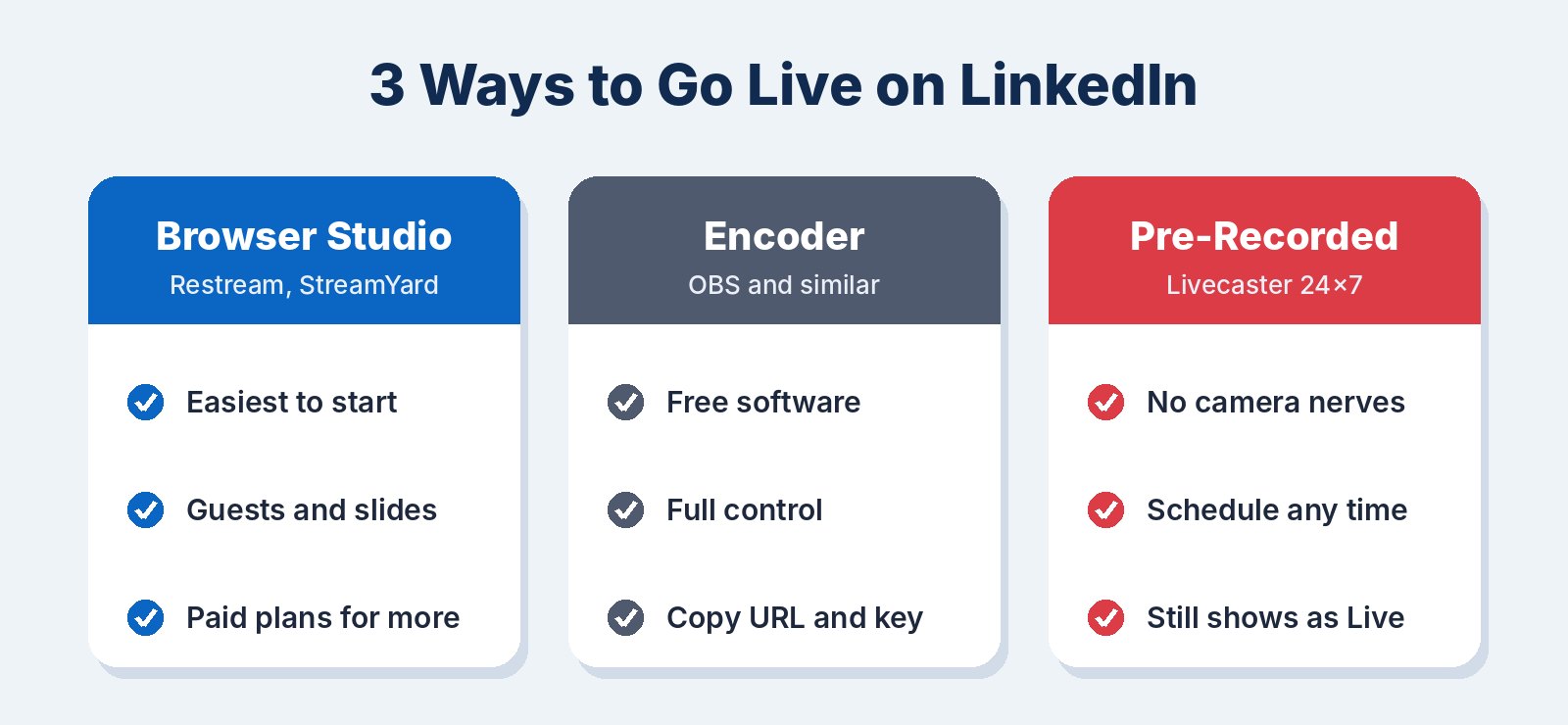
Pick the route that fits how you like to work.
1. A Browser Studio
Tools like Restream and StreamYard run in your browser. You connect your LinkedIn account, add guests, put up your logo and slides, and click Go Live. This is the easiest route for interviews and panels.
2. An Encoder Like OBS
Free software like OBS gives you full control over scenes, overlays and screen sharing. You copy the stream URL and stream key from LinkedIn into OBS. It takes a little more setup but costs nothing.
3. A Pre-Recorded Video With Livecaster
Not comfortable on camera? Live in a different time zone from your audience? You can record your session ahead of time and stream it as live with Livecaster 24x7. Viewers still see the Live badge, get the notification and can comment. More on this below.
How to Go Live on LinkedIn, Step by Step
Here's the usual process using a LinkedIn Event, which gives you the most reach.
- Create an event. On LinkedIn, go to your profile or Page and choose to create an event. Pick your Page or profile as the organizer.
- Choose LinkedIn Live as the format. If you qualify, you'll see it as an event format option.
- Add the details. A clear title, a short description that says what viewers will learn, a date, a time and a cover image.
- Pick your broadcast tool. Choose your streaming tool, or a custom stream if you use an encoder or Livecaster. LinkedIn then gives you a stream URL and stream key.
- Connect your tool. Paste the stream URL and key into your streaming tool, or log in to LinkedIn from inside tools that connect directly.
- Share the event. Invite your connections and post about it so people can register.
- Start the stream from your tool a few minutes early. Check the preview, then go live.
- Engage, then end the stream from your tool. The recording stays on the event page and your profile or Page.
Here's a short walkthrough of the event setup using Restream.
How to Stream a Pre-Recorded Video on LinkedIn With Livecaster
Full disclosure, Livecaster 24x7 is our own product, made by Teknikforce.
Livecaster turns videos you've already made into live streams on LinkedIn, YouTube, Facebook, Instagram, TikTok and Twitch. You can stream one video, a playlist, or schedule streams to go out while you're busy or asleep.
It's perfect for LinkedIn because it solves the three things that stop most professionals from going live. Camera nerves, busy calendars and time zones.
- Record your session in advance. A webinar, a product demo, a talk or an interview.
- In LinkedIn, create your Live event and choose a custom stream to get the stream URL and key.
- Open Livecaster on your PC or Mac, add a channel and paste the URL and key.
- Pick the video or playlist you want to stream.
- Start right away or schedule it for the event time. Livecaster goes live by itself.
- Join the comments from your phone and answer questions in real time.
Livecaster is $5.58 a month, paid yearly ($67 a year), or $6.99 month to month, with a 30 day refund.
Plan a 30 Minute Show People Remember
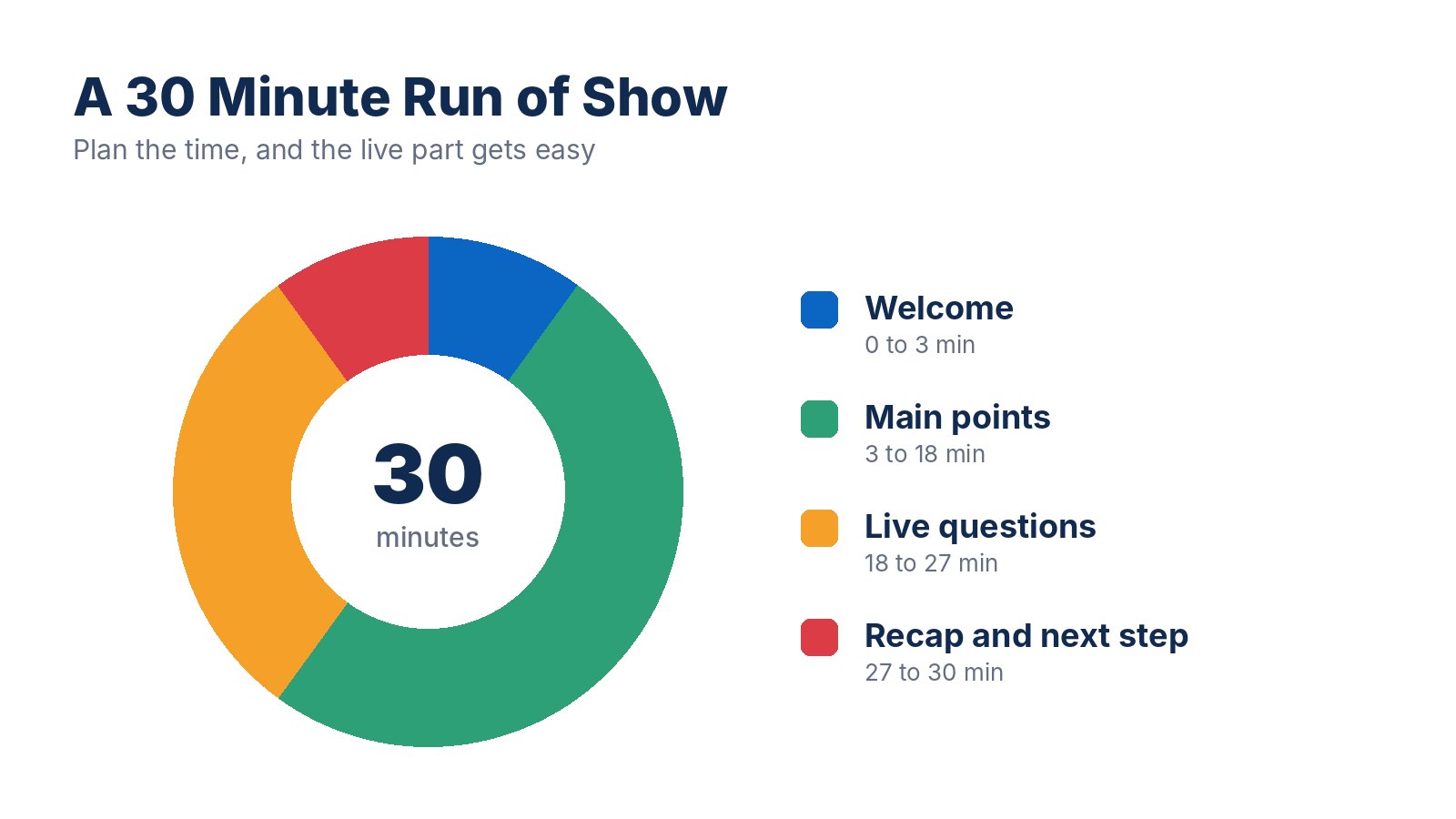
Live streams feel easy when they're planned. Here's a simple run of show for a 30 minute LinkedIn Live.
- Minutes 0 to 3. Welcome people, say who you are and what they'll get. Ask where they're watching from.
- Minutes 3 to 18. Your three to five main points. Keep each one short and practical.
- Minutes 18 to 27. Live questions. Read comments out loud and say the person's name.
- Minutes 27 to 30. Recap, one clear next step and when your next live is.
Remember that many people join late. Recap the topic every ten minutes or so.
Tips for Speaking on Camera
Feeling nervous is normal. Even seasoned speakers feel it. These simple habits help a lot.
Look at the lens, not the screen. When you look at the camera, viewers feel like you're talking to them. Put a small sticky note next to the lens as a reminder.
Talk to one person. Imagine a single client sitting across the table. Your tone becomes warmer and more natural.
Slow down. Nerves make us rush. Pause between points and take a breath. Pauses feel much shorter to viewers than they do to you.
Keep notes nearby. A few bullet points on a card or a second screen keep you on track without reading a script word for word.
Smile at the start. Your first ten seconds set the mood for the whole stream.
And if live still feels like too much for now, record a session and stream it with Livecaster while you build confidence. You can still jump into the comments and talk to viewers in real time.
Topic Ideas That Work on LinkedIn
- Expert Q&A. Answer the most common questions you get from clients.
- Interviews. Talk to a customer, partner or industry expert.
- Behind the scenes. Show how your team works or how a product is made.
- Industry news. Break down a big change and what it means for your audience.
- Live teardown. Review a website, ad or resume with permission.
- Product demo. Show your product solving a real problem.
- Hiring. Introduce your team and what it's like to work with you.
How to Get More Viewers
Create the event one to two weeks early. That gives people time to register and get reminders.
Post about it several times. A teaser, a reminder the day before and a "we're live now" post.
Invite people directly. Personal invites to relevant connections bring far more viewers than a single post.
Bring a guest. A co-host shares the event with their own network, which can double your reach.
Go live on a schedule. Same day, same time. People build a habit around shows they can predict.
Stream to more than one place. Tools like Livecaster and Restream can send the same stream to LinkedIn, YouTube and Facebook at once.
After the Stream
Your stream keeps working after you end it.
- Thank viewers in the comments and answer questions you missed.
- Cut two or three short clips for posts during the next week.
- Turn the main points into a LinkedIn article or a carousel.
- Message people who asked great questions. Many become leads.
- Check your analytics to see when viewers dropped off, and adjust the next show.
Numbers Worth Tracking
After a few streams, look at what the numbers tell you.
- Registrations. How many people signed up for the event. This shows how well your topic and promotion worked.
- Live viewers. How many showed up while you were on air.
- Replay views. How many watched later. On LinkedIn, replays often beat live views.
- Comments and questions. A sign that people were engaged, not just passing through.
- Follow-ups. New connections, messages and leads in the days after.
Compare each stream with your last few, not with big creators. Small, steady improvements add up fast.
Common Mistakes to Avoid
Skipping a test. Do a private test stream before your first real one. It catches audio and connection problems.
A slow start. Don't wait five minutes for more people. Start with value and welcome latecomers as they arrive.
Ignoring comments. Live is a conversation. If you never read comments, it's just a video.
Selling the whole time. Teach first. One clear call to action at the end is enough.
Going live once and stopping. Audiences grow with consistency. Plan a series, not a one-off.
Frequently Asked Questions
Why can't I see the LinkedIn Live option?
LinkedIn shows it only to members and Pages that meet its criteria, including more than 150 followers or connections and a good policy history. If it doesn't appear, keep growing your network and try again later.
Can I go live on LinkedIn from my phone?
Not directly from the LinkedIn app. You need a streaming tool, though some studio tools work in a mobile browser.
Can I stream a pre-recorded video on LinkedIn Live?
Yes. Tools like Livecaster stream a recorded video as live, so viewers still get the notification and can comment.
Is LinkedIn Live free?
Yes, LinkedIn doesn't charge for Live. Some streaming tools are free, like OBS, while others have paid plans.
Can I go live from a company Page?
Yes. Pages can use LinkedIn Live if they meet the same criteria, and you choose the Page as the organizer when you create the event.
How long should a LinkedIn Live be?
For most topics, 20 to 45 minutes works well. It's long enough to deliver real value and short enough to fit into a busy workday. Interviews and panels can run a bit longer.
What is the best time to go live on LinkedIn?
Weekday mornings and lunchtimes in your audience's time zone are a good place to start. Then test a few slots and keep the one that brings the most viewers.
Final Thoughts
LinkedIn Live is one of the most underused tools on the platform. Most of your competitors aren't doing it, which is exactly why it works.
Check that you qualify, pick a simple streaming tool, plan a 30 minute show and go live on a regular schedule.
And if being on camera at a set time is what's holding you back, try Livecaster 24x7. Record when it suits you, then stream it live on LinkedIn whenever your audience is online.